Overlay Images
Put one picture on top of another and blend them: drag it into place, set its size, rotation and opacity, soften its edges, and choose from nine blend modes, from Screen for double exposures to Multiply for ink and texture.
Updated

How do you overlay one image on another?
Open the base photo, then the picture to go on top. Drag the top picture into place, set its size, rotation and opacity, and choose a blend mode: Normal to simply place it, Screen to add its light (double exposures), Multiply to add its dark (ink, texture, shadows), or one of six others. Soften its edges if it should melt in, then download at the base photo's size.
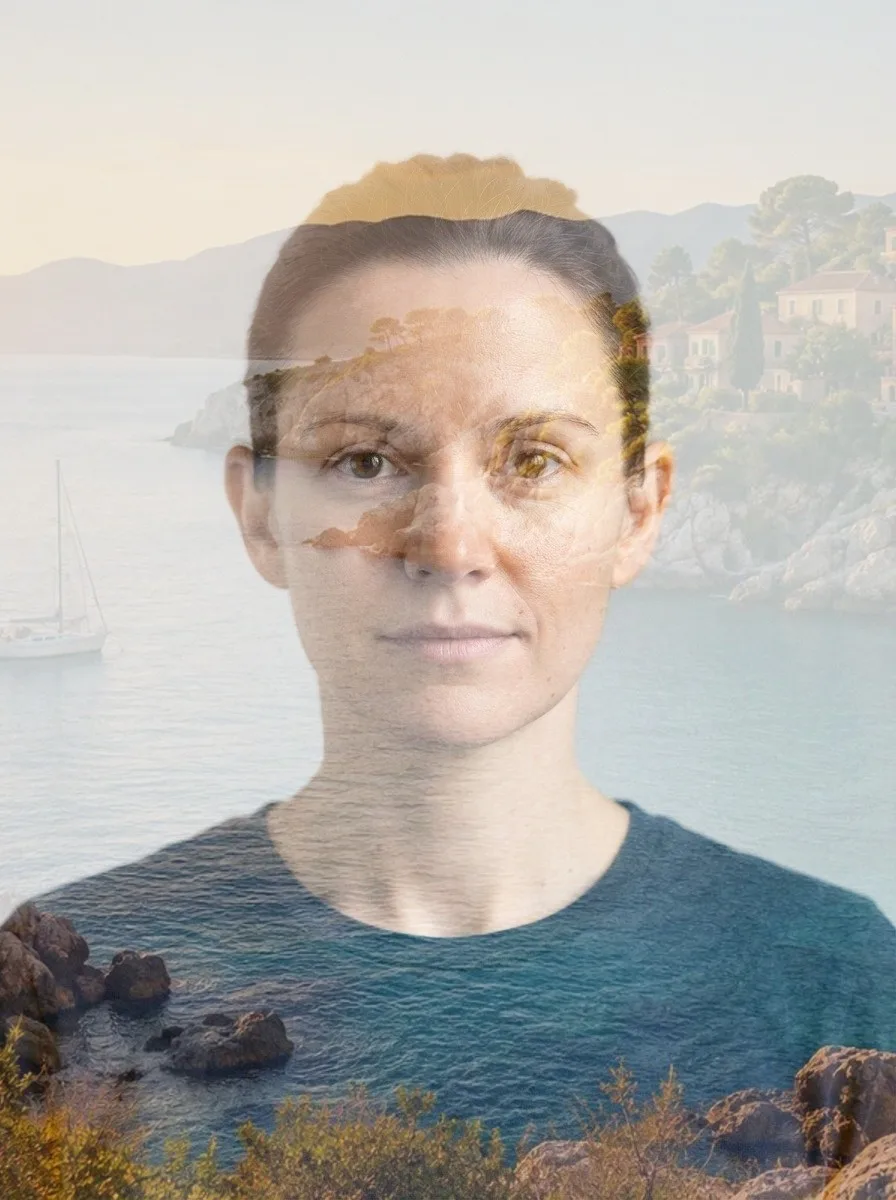
Two samples show the two common jobs. Double exposure screens a coastal landscape over a studio portrait of a fictional person made with AI; Logo on a photo places a small logo in the corner of the coastal photo.
The pictures you use are blended and saved inside your browser and never leave your device.
How to overlay images online
- Open two pictures Choose the base photo and the top picture, or try the double exposure sample.
- Place the top picture Drag it; set size, rotation and opacity, or press Fill the photo.
- Choose a blend Normal, Screen, Multiply, Overlay or five more; soften the edges if needed.
- Download Save the result at the base photo’s size as JPG, PNG or WebP.
Make a double exposure
A real recording of this tool: the double exposure sample, four blend modes, the top picture resized, dragged and softened, the logo sample, and the download.
- The double exposure sample opens: a landscape screened over a portrait.
- Multiply, Overlay, Lighten and Screen are tried.
- The landscape is resized, dragged and given soft edges.
- The logo sample places a logo in the corner, and the result is downloaded.
What does each blend mode do?
A blend mode is the rule for mixing each pixel of the top picture with the pixel under it. Normal simply covers the base, so at 100% opacity you see only the top picture. The others combine the two. To see the rules plainly, the tool's own browser mixed one mid-grey base pixel (128 out of 255) with one light top pixel (200): Normal gave 200, Screen 228, Multiply 100, Overlay 200, Soft light 158, Lighten 200, Darken 128 and Difference 72.
Screen can only make things lighter and Multiply only darker, which is why they are the two most useful modes: Screen for light (double exposures, light leaks, sparkles, fire on black), Multiply for ink and shadow (a signature, a pencil drawing or a texture on white, where the white simply disappears). Overlay and Soft light add contrast and texture; Lighten and Darken keep whichever pixel is lighter or darker; Difference shows where two pictures differ, which is handy for lining them up; Luminosity takes the top picture's light and dark with the base's colours.
| Blend mode | Result (0–255) | What it does |
|---|---|---|
| Normal | 200 | Covers the base |
| Screen | 228 | Only lightens |
| Multiply | 100 | Only darkens |
| Overlay | 200 | Adds contrast |
| Soft light | 158 | A gentler overlay |
| Lighten | 200 | Keeps the lighter |
| Darken | 128 | Keeps the darker |
| Difference | 72 | Shows the difference |
| Luminosity | 200 | Top’s light, base’s colour |
How do you make a double exposure?
A double exposure is two photos on one frame. On film it happened when the film was not wound on between shots, so the second photo was added to the first: light areas of either one show through, dark areas let the other one show. Screen blend is the digital equivalent, because it adds light the way film does. The classic recipe is a portrait against a plain light background with a landscape screened over it, so the landscape shows inside the dark parts of the person.
The sample does exactly that: a studio portrait as the base and the coastal photo on top, filling the frame, in Screen at 80%. The result is saved at the base photo's size, 896 × 1200 pixels, 218,181 bytes as a 92% JPG. Lower the opacity to bring the face back; drag the landscape to choose which part of it falls on the face.
When should I use Multiply?
Whenever the top picture is dark marks on white: ink, a signature, a sketch, a scanned texture, text on paper, or a shadow. Multiply treats white as no change, so the white of the paper vanishes and only the marks darken the photo below, without having to cut anything out. It is also how printers' inks mix: two colours on top of each other always come out darker.
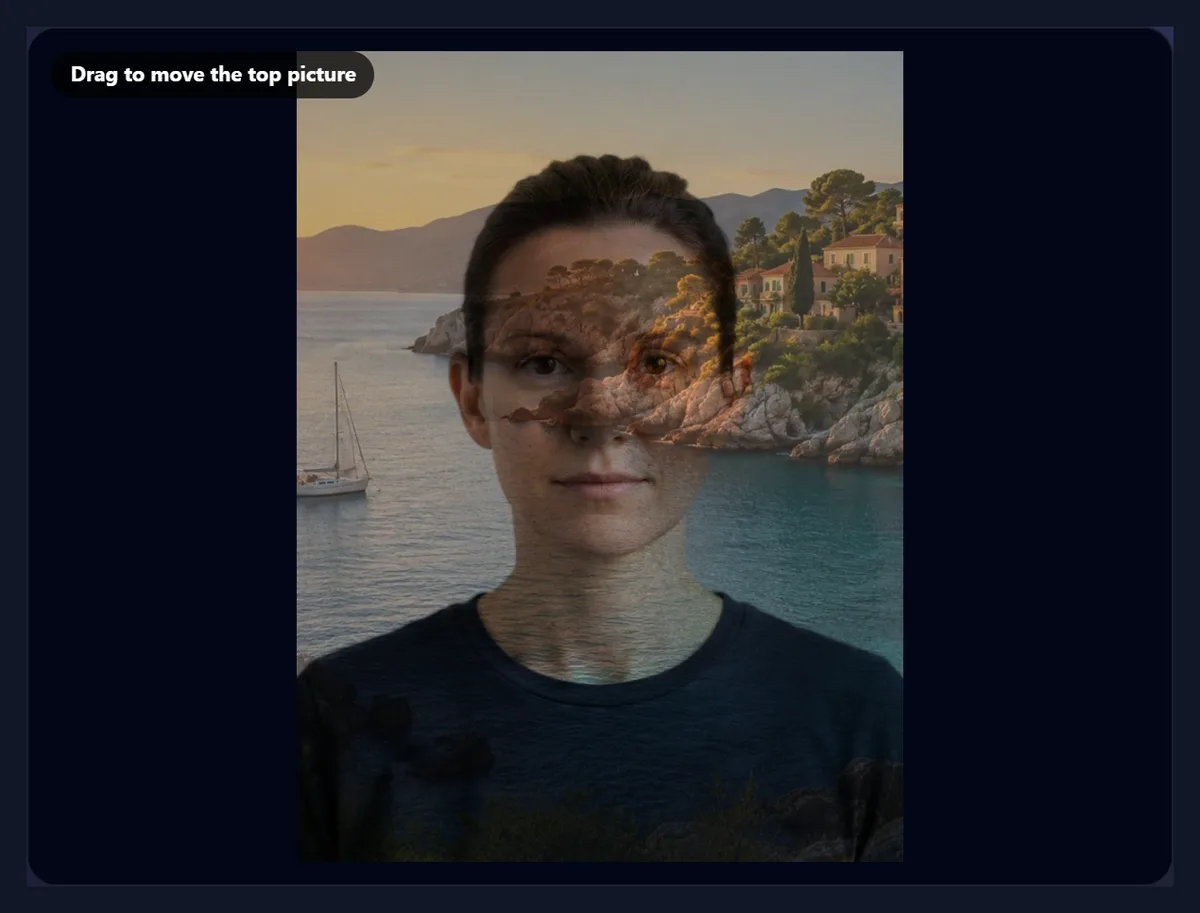
On a light photo Multiply darkens everything, as the sample shows: the coastal photo over the studio portrait turns into a dim, moody blend, because almost nothing in the landscape is white. That is the opposite of Screen, which kept the portrait's light background bright.
How do I move, resize and rotate the top picture?
Drag it. The top picture follows your finger or pointer anywhere on the base, and can hang partly off the edge. Size sets its width as a share of the base photo's width, from 5% to 200%; Rotation turns it from −180° to 180° around its centre; Opacity sets how strongly it shows. Fill the photo makes it just large enough to cover the base, centred, and Centre it moves it back to the middle without changing its size.
The download is always the base photo's size and shape, so anything hanging off the edge is cut off. To add a border of empty space, or to make the result a different shape, crop or extend the base photo first.
What do soft edges do?
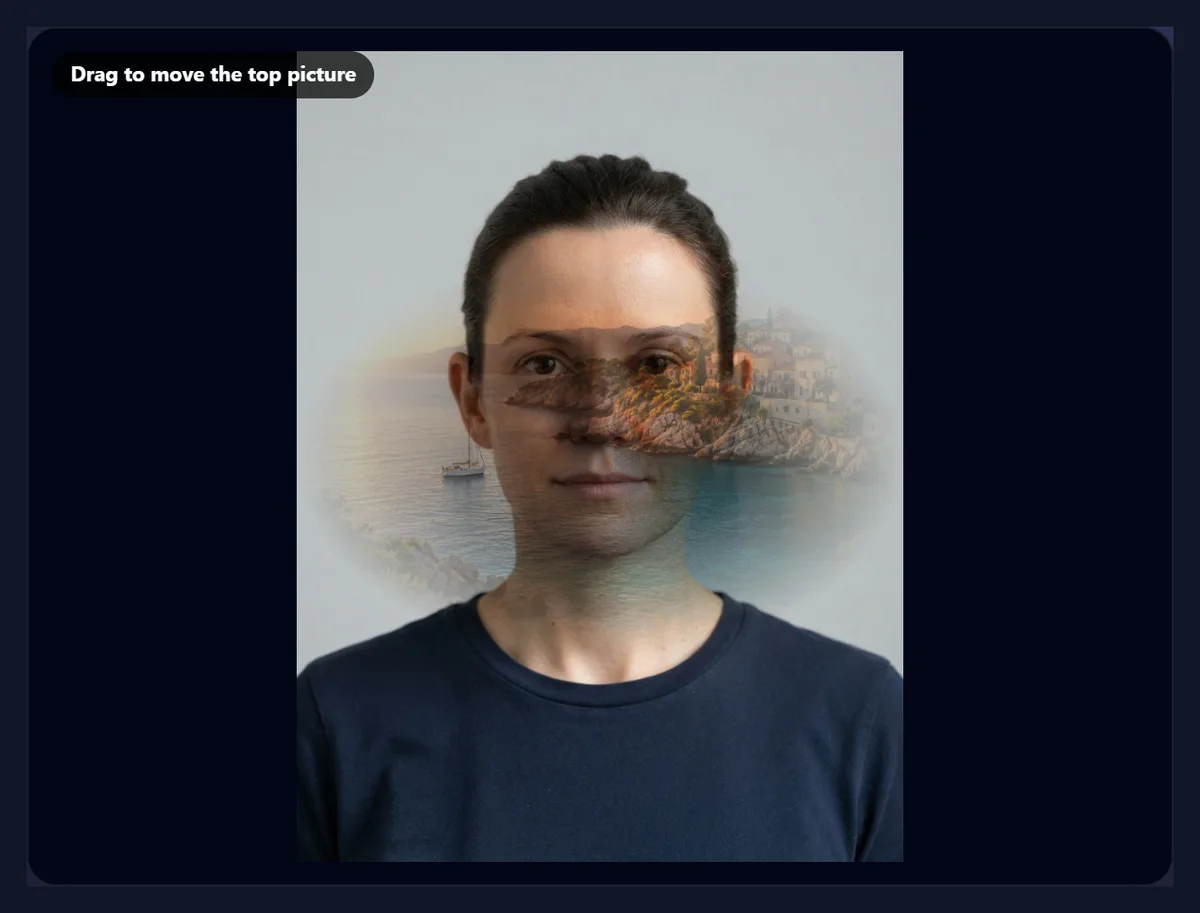
They fade the top picture out towards its border, so it melts into the base instead of sitting on it as a rectangle. The fade is an ellipse fitted to the top picture's own shape: at 20 to 40% only the edges soften, while at 80 to 100% only the middle stays fully visible, like an old vignette portrait.
Soft edges matter most with Normal blend, where a hard edge is obvious, and for putting a small face, product or detail into a larger scene. With Screen or Multiply the blend itself often hides the edge already.
Can I put a logo or watermark on a photo?
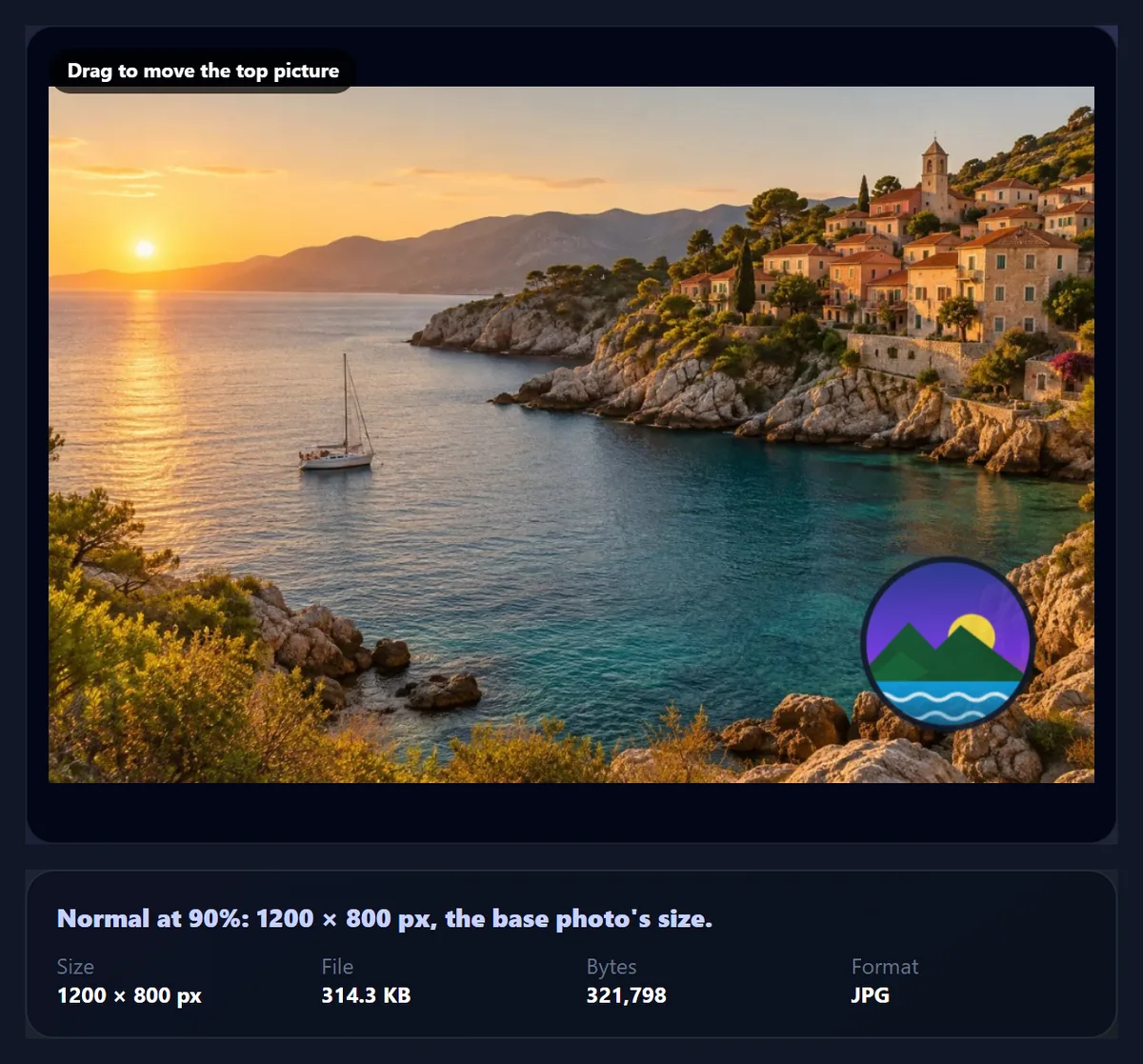
Yes: use a PNG logo with a transparent background as the top picture, Normal blend, and Size around 15 to 25%. The second sample does that: the logo sits in the bottom-right corner of the coastal photo at 18% of the width and 90% opacity, saved as a 1200 × 800 JPG of 321,798 bytes. If your logo has a white box around it, Multiply hides the white without cutting it out, or remove the background first.
For a classic watermark, lower the opacity to 30 to 50% so the photo still reads clearly through the logo. For many photos at once, with the same position on each, the Add Watermark tool is quicker.
What is the difference between overlaying and combining images?
Combining puts photos next to each other, in a row, a grid or a collage, so each one is seen whole. Overlaying puts one on top of the other in the same space, so they mix. Use a collage when every photo should be seen, and an overlay when two pictures should become one image: a double exposure, a texture on a photo, a logo, light effects or a subtle background.
Overlaying here is two pictures at a time. To build up more layers, download the result and open it again as the base for the next picture.
How do I add a texture to a photo?
Use a photo of the texture, such as paper, concrete, scratched film, dust, bokeh lights or fabric, as the top picture, fill the photo with it, and choose the blend by what the texture looks like. Dark marks on a light ground (paper grain, scratches) suit Multiply; light marks on dark (dust, light leaks, bokeh) suit Screen; mid-grey textures suit Overlay or Soft light, which add the texture's detail while keeping the base's own light and colour.
Keep the opacity low, often 20 to 50%: a texture should be felt rather than seen. Luminosity blend is useful in the other direction, when you want the texture's light and shade but none of its colour.
How much opacity should I use?
It depends on the job. A double exposure usually looks best between 60 and 90%, strong enough for the landscape to read, light enough for the face to stay recognisable. A texture is best felt rather than seen, at 20 to 50%. A logo or a sticker is usually fully opaque, or around 30 to 50% as a watermark.
Opacity and blend mode work together: Screen at 100% can already look subtle on a dark base, while Normal at 100% hides the base completely. Set the blend first, then the opacity.
Which files work, and is anything uploaded?
Both pictures can be JPG, PNG or WebP, up to 40 megapixels; convert iPhone HEIC photos to JPG first. A PNG with transparency keeps its transparency as the top picture, so a cut-out subject or a logo blends cleanly. The result is saved at the base photo's size as JPG, PNG or WebP (above about 16 megapixels it is saved slightly smaller, the largest canvas iPhone browsers allow).
Nothing is uploaded. Both pictures are opened, blended and saved inside your browser tab, and no account is needed. The download carries no EXIF data from either photo.
Why does my overlay look washed out or muddy?
Washed out usually means Screen on a light base: Screen adds the top picture's light to an already light photo, so everything heads towards white. Try a darker base, lower the opacity, or switch to Overlay or Soft light. Muddy usually means Multiply on two mid-tone photos, which only ever darkens; use Multiply for dark marks on white, not for two ordinary photos.
If the top picture is not where you expect, press Centre it, then drag. If it looks blurry, it is probably being enlarged beyond its own size: at 200% a small picture is stretched, so use a larger one.
Frequently asked questions
How do I overlay two pictures?
Open the base photo and the top picture, drag the top one into place, choose a blend mode and opacity, and download.
How do I make a double exposure?
Use a portrait on a light background as the base, a landscape on top, Fill the photo, and Screen blend.
Which blend mode should I use?
Normal to place a picture, Screen for light effects, Multiply for ink or texture on white.
Can I make the top picture transparent?
Yes. Lower the Opacity slider; 0% hides it completely.
Can I put a logo on a photo?
Yes. Use a transparent PNG logo on top, Normal blend, about 15 to 25% size.
What size is the result?
The base photo’s size and shape.
Can I overlay more than two images?
Two at a time: download the result and use it as the base for the next one.
Is my photo uploaded?
No. Both pictures are blended in your browser.
Is it free?
Yes, with no account, watermark or limit.
Related tools
- Combine Images — Put photos side by side instead.
- Image Montage — Many photos in one picture.
- Add Watermark to Photo — The same logo on many photos.
- Background Remover — Cut out a subject before overlaying it.
- Vintage Filter — Finish a double exposure with an old film look.
- Remove Background from Logo — Turn a logo’s white box transparent first.