Remove Signature Background
Turn a photo of your signature into a transparent PNG for documents. The paper is taken out even when the light is uneven, soft pen edges stay soft, and you can keep the ink as written or make it black, blue or navy.
Updated

How do you remove the background from a signature?
Sign on white paper, take a photo, and open it here. The tool estimates the paper's brightness across the whole photo, keeps everything noticeably darker as ink, and makes the paper transparent. Adjust the sensitivity if strokes break up or a haze appears, choose the ink colour, and download a transparent PNG trimmed to the signature.
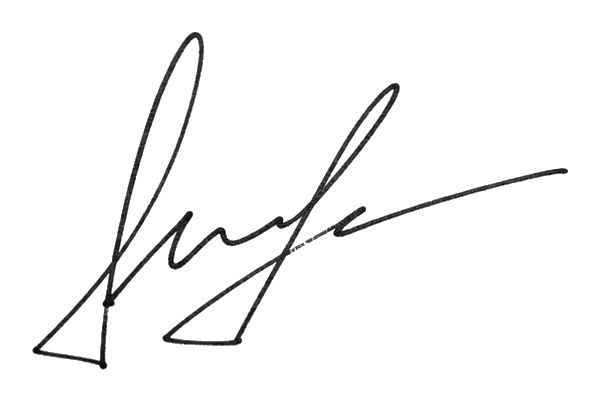
On the sample, a photo of a signature on paper, the ink covered 3.3% of the photo and the signature itself was 536 × 338 pixels; the trimmed PNG was 600 × 402 pixels and 56,476 bytes.
Your signature never leaves your device: it is processed and saved inside your browser, with no upload, account or AI.
How to make a signature transparent
- Photograph your signature Sign on white paper with a dark pen and photograph it from above in even light.
- Open the photo Choose a JPG, PNG or WebP, drop it on the preview, or try the sample.
- Adjust Set the sensitivity, the ink colour, and the margin around the trimmed signature.
- Download a PNG Save the signature on a transparent background and insert it into your document.
Lift a signature off paper
A real recording of this tool: the sample signature made transparent, the sensitivity slider, the ink colours, and the PNG downloaded.
- The sample signature opens with the paper already removed.
- Sensitivity is lowered and set back to 50%.
- Blue, Black and As written ink are tried.
- The transparent PNG is downloaded.
What does the sensitivity slider do?
It decides how faint a mark still counts as ink. At low sensitivity only the dark core of each stroke is kept, so thin, light strokes may break up. At high sensitivity fainter ink is kept too, and near the top of the slider so is the faint texture of the paper itself, as almost-clear pixels. On the sample the ink barely changed: it covered 3.1% of the photo at 0% sensitivity, 3.3% at the default 50% and 3.5% at 100%.
The file size shows what changed instead. The trimmed PNG was 51.9 KB at 0%, 55.2 KB at 50%, 73.2 KB at 75% and 304.3 KB at 100%, because at the top of the slider thousands of paper pixels are kept as nearly invisible specks. Leave sensitivity at 50% for a dark pen on white paper; raise it for a light pencil or a pale ballpoint, and lower it if a grey haze appears around the signature.
| Sensitivity | Ink covers | PNG size | Signature |
|---|---|---|---|
| 0% | 3.1% | 51.9 KB | 536 × 337 |
| 25% | 3.2% | 53.4 KB | 536 × 338 |
| 50% | 3.3% | 55.2 KB | 536 × 338 |
| 75% | 3.4% | 73.2 KB | 536 × 338 |
| 100% | 3.5% | 304.3 KB | 537 × 339 |
How does it deal with shadows and uneven light?
A phone photo of paper is never evenly lit: one corner is darker, there is a shadow from the phone, and the white is really a gradient of greys. A single cut-off for 'paper' would either leave the darker corner grey or lose ink in the brighter part. So the tool first estimates the paper's own brightness everywhere in the photo: in small blocks it takes the brightest values, which are paper because ink is always darker, smooths them, and spreads them smoothly across the photo.
Each pixel is then judged against the paper right around it, not against pure white. Ink is whatever is noticeably darker than its own local paper, so a signature that runs from a bright area into a shadow is lifted the same way along its whole length, and the shadow itself disappears.
Why do the pen edges stay soft?
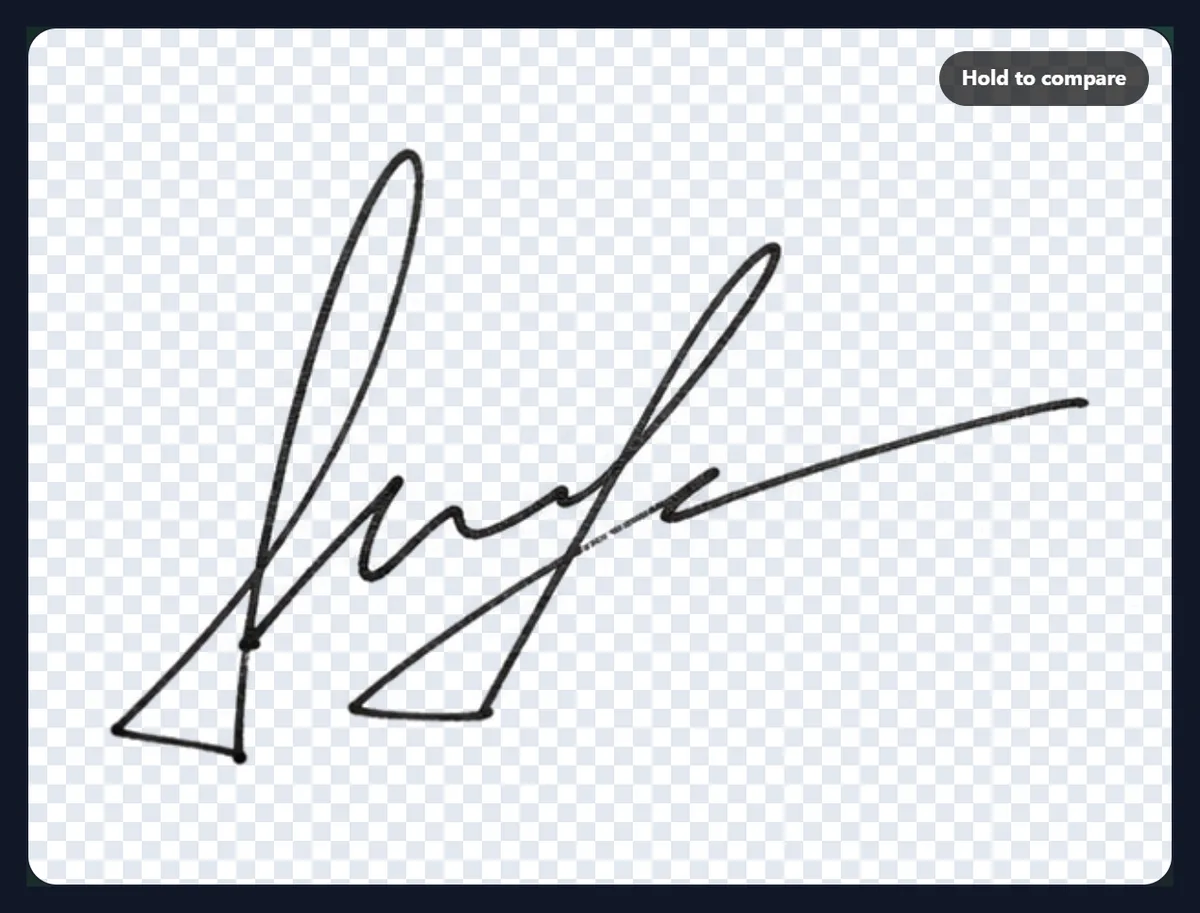
Because opacity follows darkness. A pen stroke is darkest in the middle and fades at its edges, where it is only partly over each pixel. Each pixel's opacity is set by how much darker than the paper it is: faint edge pixels become partly transparent and the dark core fully opaque. The stroke keeps its natural, slightly soft edge, so it looks written rather than cut out when it is placed on a document.
The ink's colour is recovered the same way: the paper's colour is taken back out of each pixel, so blue ink stays blue rather than turning into a pale blue-grey mixed with the paper. With As written the signature keeps the pen's own colour.
Can I change the ink colour?
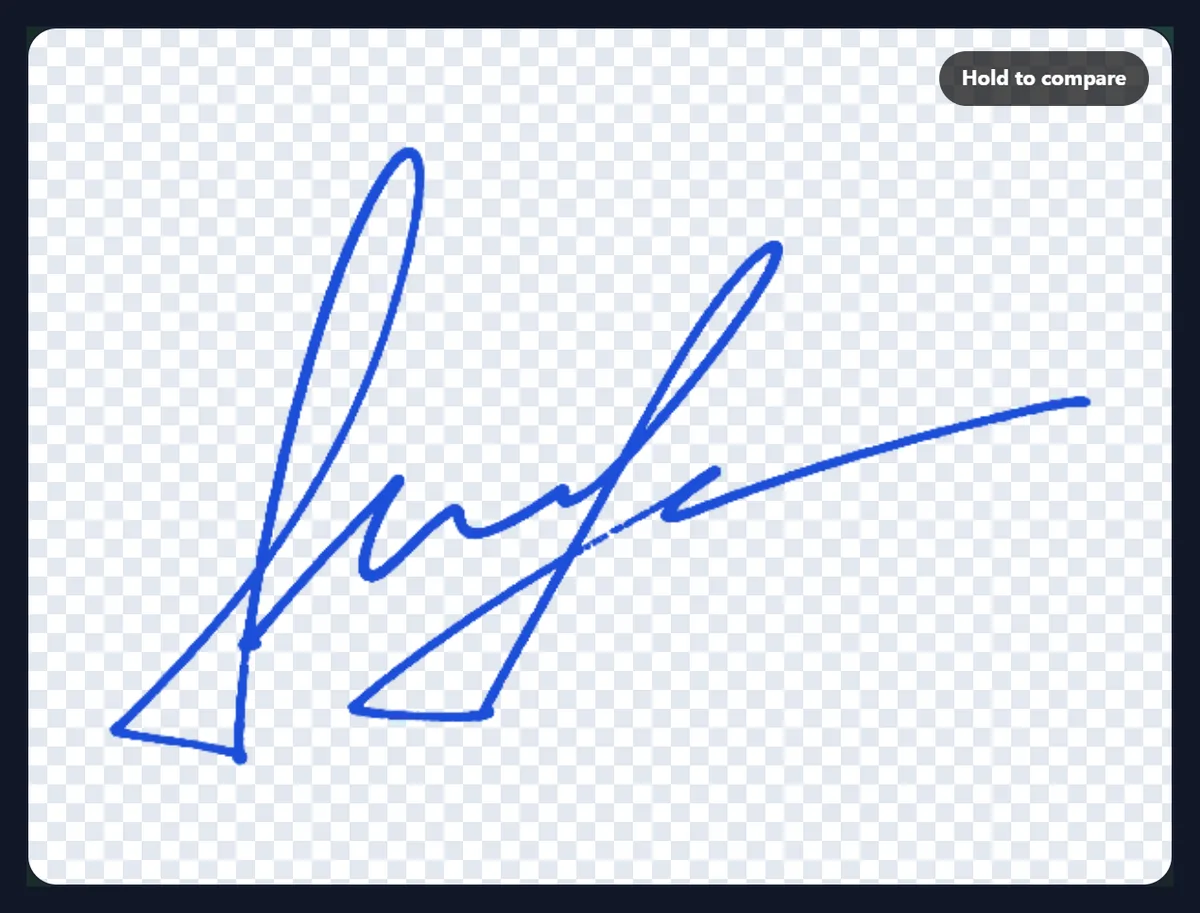
Yes. As written keeps the colour from the photo. Black, Blue and Navy replace it with a clean, even ink colour while keeping each pixel's opacity, so the soft edges stay soft. A single colour also tidies up a photo where the ink came out slightly uneven, and it makes the file smaller: the sample in Blue saved as 29,867 bytes against 56,476 as written, because one colour compresses better than many.
Blue ink is common for signatures because it makes an original easy to tell from a black-and-white photocopy. On a digital document that does not apply, so choose the colour that suits the document.
Why trim to the signature?
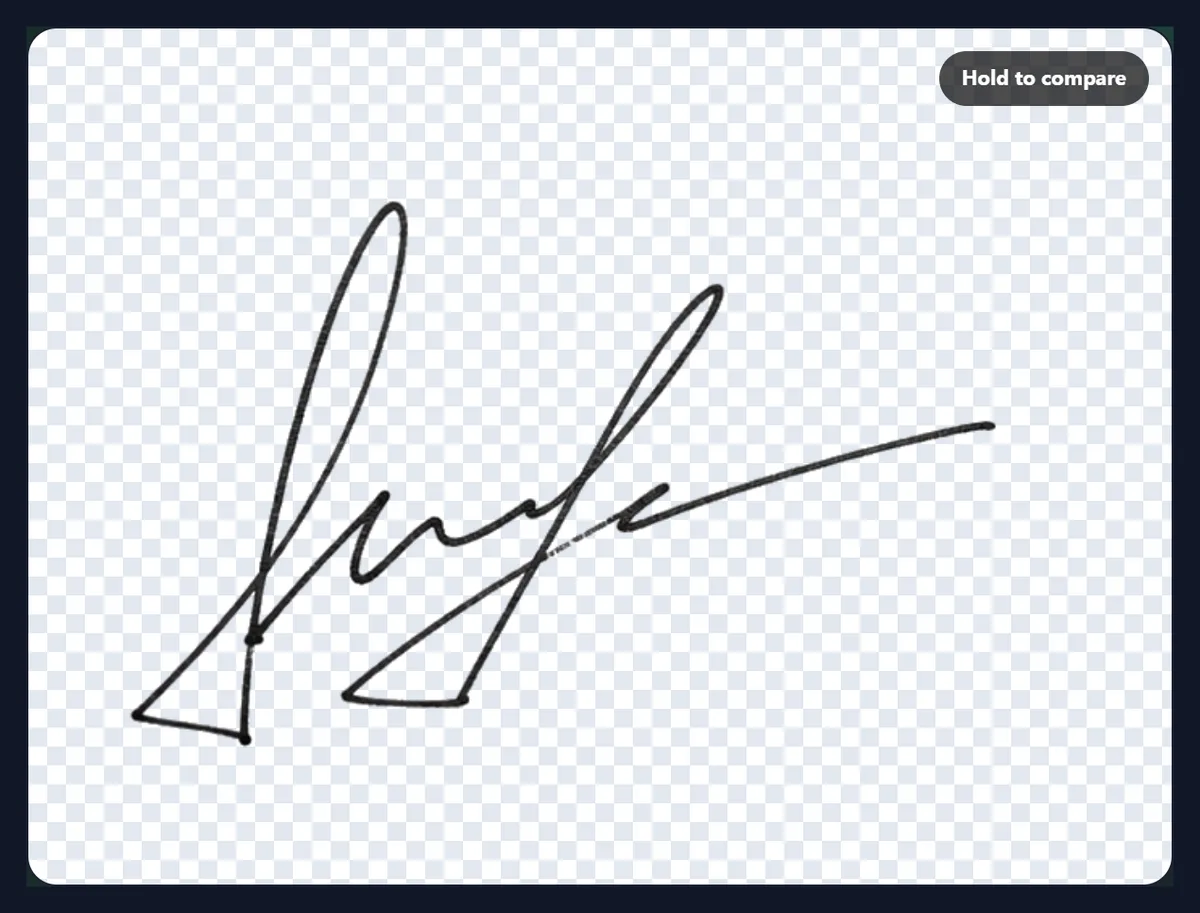
So the image is the signature and nothing else. A photo of a signature is mostly empty paper; trimmed, the PNG is just the signature with a small margin, and it drops into a document at the right size without a large invisible box around it. On the sample the signature itself was 536 × 338 pixels and the trimmed PNG, with the default 6% margin, 600 × 402, against 59,818 bytes and 680 × 500 for the untrimmed photo.
Margin around it sets the space kept around the signature, from 0 to 30%. A little margin stops the strokes from touching the edge, which some apps then crop or blur. Turn Trim to the signature off to keep the whole photo, for example to keep a signature's position on a form.
How should I photograph my signature?
Sign on plain white paper with a dark pen, a felt tip or gel pen rather than a light ballpoint, and write a little larger than usual. Photograph it in daylight or under even room light, from straight above, with the paper filling most of the frame and without the phone's shadow across it. Use the phone's normal camera rather than the flash, which can leave a bright spot.
Lined or squared paper works less well, because the lines are darker than the paper and some will be kept as ink. If you only have lined paper, a light pencil line can usually be removed by lowering the sensitivity; printed lines are often too dark.
How do I add the signature to a document?
Insert the PNG as a picture. In Word or Google Docs use Insert, then Picture or Image, and set the image to sit in front of the text so it can be moved onto the signature line. In a PDF editor, add it as an image or stamp. Because the background is transparent, the signature sits on the document's own lines and colours instead of covering them with a white box.
Resize it by its corner so the proportions stay right. A signature line is usually about 4 to 6 cm wide, so a PNG a few hundred pixels across is enough for screen and print.
Is an image of my signature an electronic signature?
It is a picture of your handwriting, which many people use to sign forms, letters and invoices. Whether a document signed this way is accepted depends on the document, the other party and where you are. Some agreements need a dedicated e-signature service, which records who signed, when and from where; a pasted picture does not do that.
Treat the PNG like your signature itself: keep it on your own device, do not post it publicly, and only add it to documents you mean to sign. Nothing you open here is uploaded, so the signature stays on your device.
Should I scan my signature or photograph it?
Either works. A flatbed scan gives the most even light and the sharpest strokes, so it needs the least adjusting: a scan at 300 dpi is plenty. A phone photo is quicker and works just as well once the paper's uneven light has been taken out, which is what the tool is built for. Avoid photographing a signature on a screen, because the screen's pixels and glare come through as texture.
Whichever you use, crop away anything that is not paper first, such as the table or your hand, so the paper fills the frame and the paper estimate is not confused by dark surroundings.
Which files work, and is anything uploaded?
You can open JPG, PNG and WebP photos and scans up to 40 megapixels; convert iPhone HEIC photos to JPG first. The signature is saved as a transparent PNG by default; WebP also keeps transparency, and JPG puts the signature on white. Nothing is uploaded: the photo is opened, processed and saved inside your browser tab, no account is needed, and no AI is involved.
The sample is cropped from an AI-generated picture of a signature on paper made for this site; the method works the same on a real photo of yours.
Why is there a grey haze or broken strokes?
A grey haze around the signature, or speckles across the paper, means the sensitivity is too high for this photo, usually because the paper has texture or the photo is grainy: lower it until the haze goes. Broken, patchy strokes mean the opposite: the ink is pale, so raise the sensitivity, or sign again with a darker pen.
A dark smudge kept as ink is a shadow or a crease that is darker than the paper around it; retake the photo with flatter paper and softer light, or trim it away by cropping first. If the colour looks wrong, choose Black, Blue or Navy instead of As written.
Frequently asked questions
How do I make my signature transparent?
Photograph it on white paper, open the photo here, and download the transparent PNG.
Can I remove a white background from a signature?
Yes. The paper is made transparent, even with shadows or uneven light.
Why is there a grey haze around my signature?
The sensitivity is too high for the photo; lower it until the haze goes.
Can I make my signature blue or black?
Yes. Choose Black, Blue or Navy, or keep the ink as written.
Which file type should I use for a signature?
A transparent PNG, which keeps the soft edges and sits on any document.
How do I add the signature to Word or a PDF?
Insert the PNG as a picture and move it onto the signature line.
Is a signature image legally binding?
That depends on the document and the parties; some agreements need an e-signature service.
Is my signature uploaded?
No. It is processed in your browser and stays on your device.
Is it free?
Yes, with no account, watermark or limit.
Related tools
- Remove Background from Logo — Make a logo’s white box transparent.
- Remove White Background — Any image on white, made transparent.
- Transparent Background — More ways to make backgrounds see-through.
- Crop Image — Crop the photo before lifting the signature.
- Overlay Images — Place the signature on a picture with Multiply.
- PNG Maker — Turn other images into PNG.