Create Transparent Backgrounds
Make a background transparent the right way for your image: a plain backdrop is cleared instantly in your browser, a real scene by HueFold’s free AI cutout. Either way you get a full-size PNG with soft, clean edges.
Updated

How do you make a background transparent?
Choose what is behind your subject. For a plain background, such as a white box, a studio wall or a coloured card, the tool reads the colour from the image's edge and clears it in your browser in a moment. For a real background, such as a room, a street or a garden, HueFold's AI finds the subject and cuts it out. Check the result on the checkerboard, fix anything with a click or a brush, and download a transparent PNG.
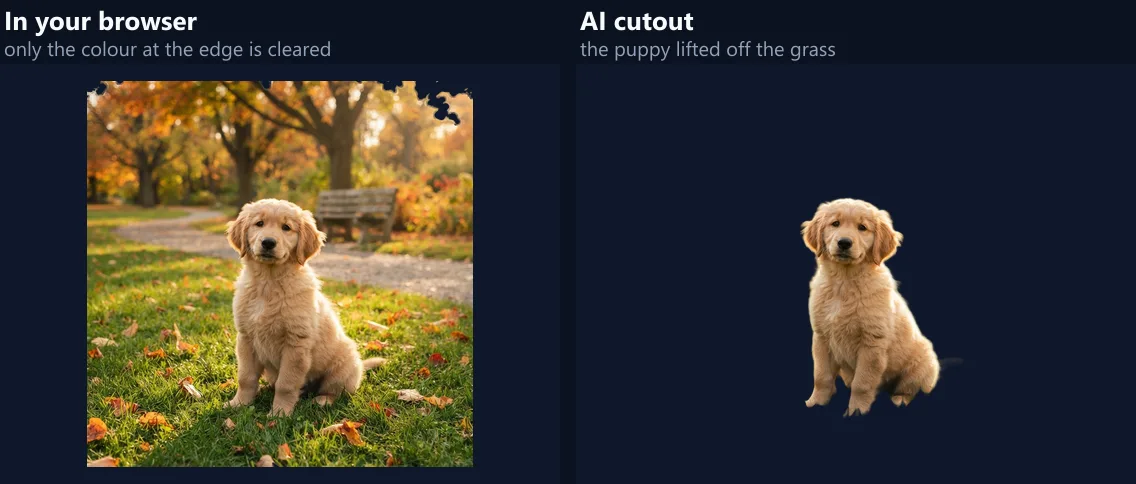
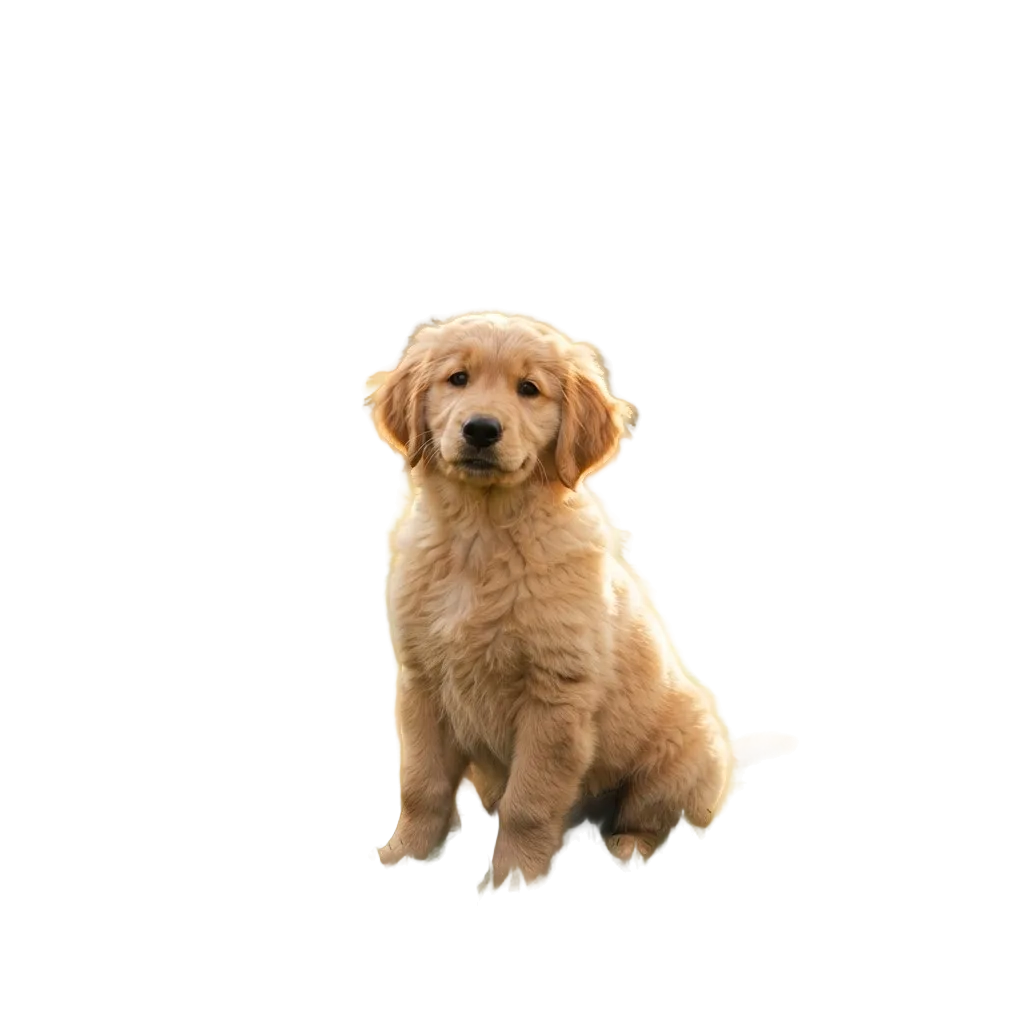
On the studio portrait's plain grey wall, the in-browser route cleared 49.0% of the image; on the puppy in a park it could clear only 1.0%, and the AI cutout cleared 85.7%.
The in-browser route needs no account and never uploads your image; the AI route is free with a HueFold account and uses no AI credits.
How to create a transparent background
- Choose the route A plain background is cleared in your browser; a real one needs the AI cutout.
- Open the image Choose a JPG, PNG or WebP, or try the sample for that route.
- Check the edges Click missed gaps on the plain route, or fix the cutout with Erase and Restore.
- Download a PNG Save the transparent image at full size.
Make a background transparent
A real recording of this tool: the studio portrait’s plain wall cleared in the browser, then the puppy cut out by HueFold’s AI on the real-background route, and the PNG downloaded.
- The studio portrait opens on the plain route, its grey wall already cleared.
- The real-background route is chosen and the puppy sample opens.
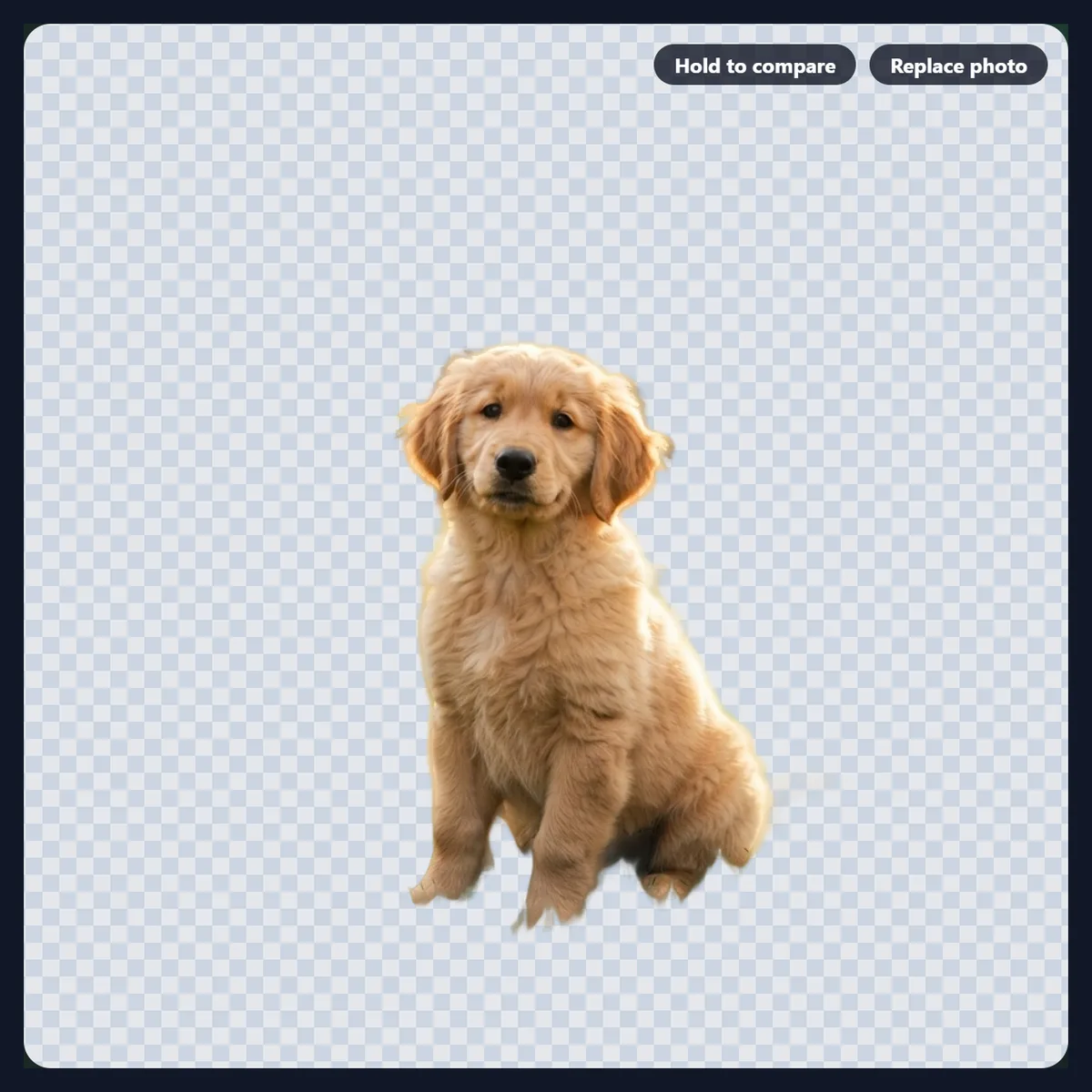
- HueFold’s AI cuts the puppy out of the park.
- The transparent PNG is downloaded.
Which way should I clear my background?
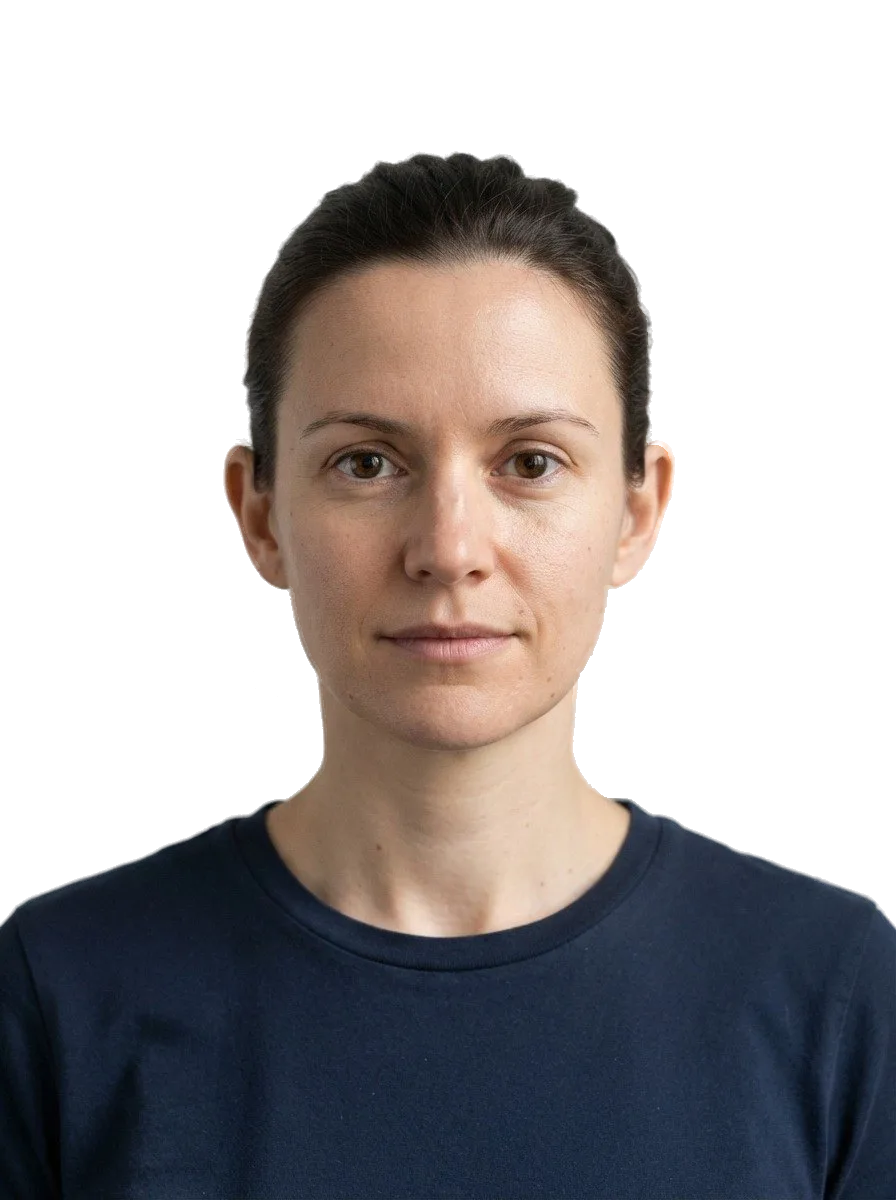
It depends on what is behind the subject, and the numbers show why. On the studio portrait, whose backdrop is a plain grey wall (#b5babb), the in-browser route cleared 49.0% of the image and the AI cutout 48.3%: the same job, done either way, with 50.0% and 50.0% of the picture kept solid. On a plain backdrop the in-browser route is the better choice: it is instant, needs no account, and the photo never leaves your device.
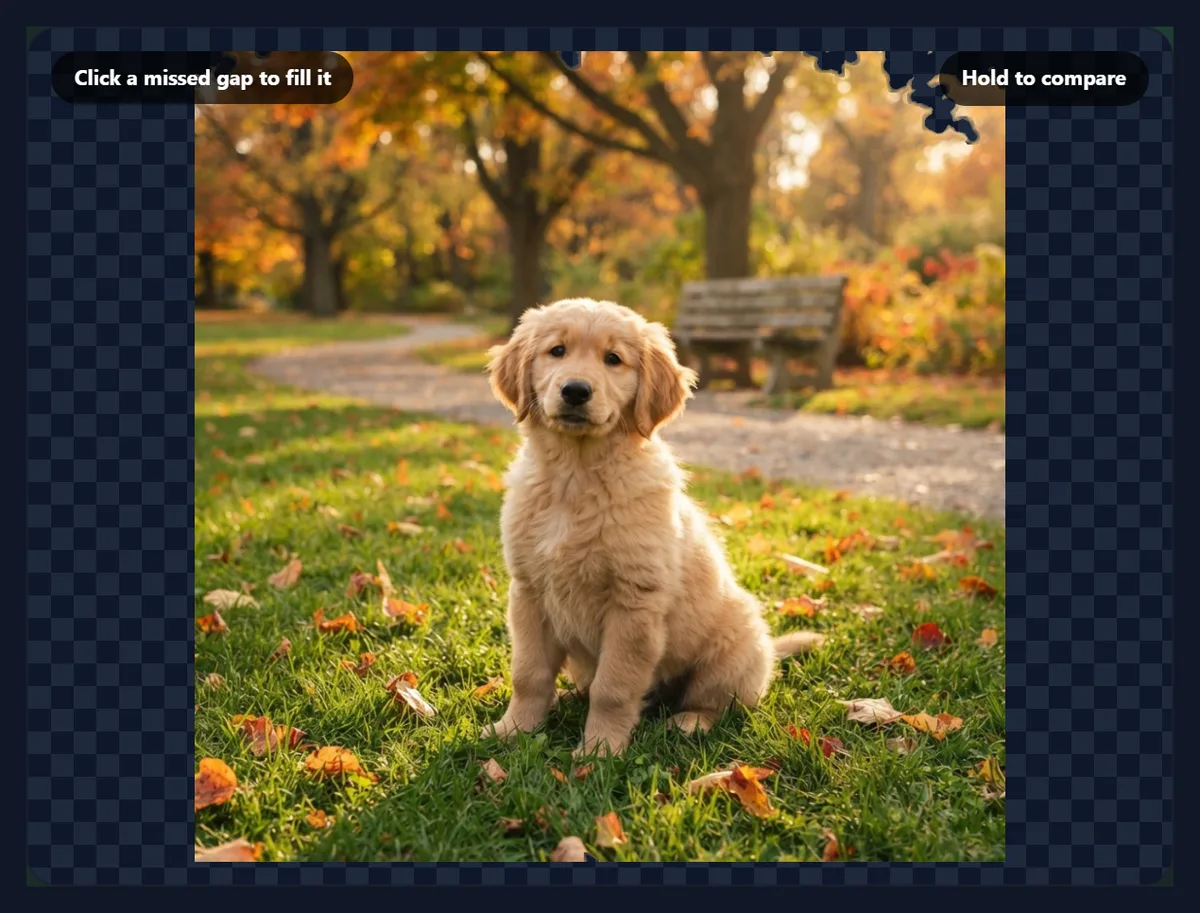
On the puppy, photographed on grass in a park, the in-browser route could clear only what matched the colour at the image's edge, 1.0% of it. The AI cutout recognised the puppy and cleared 85.7%, everything but the dog. A real scene needs the AI.
| Sample and route | Fully clear | Partly clear | Solid |
|---|---|---|---|
| Studio portrait · in your browser | 49.0% | 1.0% | 50.0% |
| Studio portrait · ai cutout | 48.3% | 1.8% | 50.0% |
| Puppy on grass · in your browser | 1.0% | 0.4% | 98.6% |
| Puppy on grass · ai cutout | 85.7% | 2.2% | 12.1% |
How does the in-browser route work?
It reads the backdrop colour from the image's edge, fills it in from there through every connected pixel close to that colour, and keeps anything the outline encloses. Along the outline each pixel is unmixed: its share of the old wall is worked out against the wall just behind it, and only the subject's share is kept, so hair and soft edges carry no grey rim onto a new background.
It works on any flat backdrop: a white box, a studio wall, a coloured card, a screenshot's background. A gap the fill could not reach, such as the space between an arm and the body, can be cleared with a click.
How does the AI route work?
It sends a copy of the photo, at most 2,048 pixels on its long side, to HueFold's own AI, which finds the main subject (a person, a pet, a product) and returns a matte: how much of each pixel belongs to the subject. That matte is scaled to your full-size photo and applied to your own pixels, so the subject keeps every bit of the original's detail rather than the model's re-encoded copy, and the edge colours are cleaned so no old background shows in fine hair.
It needs a free HueFold account and uses no AI credits. Signed in, the cutout starts by itself when you open a photo; Fix the cutout gives you Erase and Restore brushes for anything it got wrong.
Is the subject fully solid?
Yes, and that was measured. The AI's matte arrives with its solid core a hair short of full, 254 of 255, because the service rounds its confidence down when it stores it; the tool now snaps the near-solid and near-clear ends of the matte, so a cut-out subject is fully opaque. On the studio portrait the AI route kept 50.0% of the image solid, the same as the in-browser route's 50.0%, with only the hair and shoulders in between.
It matters more than it sounds: a subject that is 99.6% opaque looks the same on screen, but it can stack and select oddly in design apps, and it costs bytes: the puppy's PNG went from 371,871 to 357,442 bytes once its core was solid.
What happens if I use the in-browser route on a real photo?
Very little, and that is by design. The fill starts from the colour at the image's edge and stops wherever the colour changes, so on a park full of trees, grass and leaves it cleared only a small patch of sky in a corner, 1.0% of the image. It never guesses where a subject is, which is what keeps it exact on plain backdrops.
If the result looks almost unchanged, switch to A real background and let the AI cut the subject out.
What is a transparent background?
An image whose background pixels are fully see-through, so it can be placed on any colour, photo or page without a box around it. Image files store this as an alpha channel: an opacity for every pixel, from fully clear to fully solid, with soft edges in between. Design apps and browsers show the clear areas as a grey-and-white checkerboard, which is not part of the image.
Only some formats can hold it: PNG and WebP can, JPG cannot. A transparent image saved as JPG gets a solid background again, usually white.
What are transparent backgrounds used for?
Product photos for shops and marketplaces, which often want the product on a clean background; profile pictures and team photos on a brand colour; stickers and cut-outs for social posts; people and objects in thumbnails, slides and posters; logos on websites; and any picture that should sit on a page rather than in a rectangle.
Once the background is clear, the background tools can put the subject on a colour, a gradient, a blurred version of its own background or a new AI scene.
How can I check that a PNG is really transparent?
Open it somewhere that shows transparency: a browser tab on a dark theme, a design app, or this page's preview, where clear areas appear as a checkerboard. If you see white where the background was, the file was saved as JPG, or the app you opened it in shows transparency as white. The checkerboard itself is only how apps show clear pixels; it is never part of the file.
Both routes here save PNG, which keeps the transparency in every app that supports images.
How are hair and fur handled?
Softly, on both routes. On a plain wall, each edge pixel is unmixed against the wall just behind it, so wisps of hair keep their own colour and their transparency rather than a grey or white rim. With the AI, the matte gives each hair pixel a partial opacity and the edge colours are rebuilt from the subject just inside the edge, so the old background does not show through fine fur.
Very fine, backlit or flyaway hair is the hardest case for any cutout. If a little of the old background remains, Erase it; if a strand was lost, Restore brings it back.
Do I need an account?
Not for a plain backdrop: the in-browser route needs no account and sends nothing anywhere. For a real background, the AI route needs a free HueFold account, because the cutout runs on HueFold's servers; it uses no AI credits.
Both routes save the result as a full-size PNG; the AI route can also continue in HueFold Studio for more editing.
Which files work, and what happens to my photo?
Both routes open JPG, PNG and WebP; convert iPhone HEIC photos to JPG first. The in-browser route takes images up to 40 megapixels and never uploads them. The AI route takes photos up to 20 MB, works at up to 4,096 pixels on the long side, and sends a copy of at most 2,048 pixels to HueFold's AI for the matte; the cut-out itself is made from your full-size photo in your browser.
The samples are the site's studio portrait of a fictional person made with AI and its puppy photo.
Why is part of the background still there?
On the in-browser route, a leftover patch is a part of the backdrop the fill could not reach, or a colour too far from the edge colour: click it to clear it, or raise the tolerance. On the AI route, it is something the AI took for part of the subject, such as a chair behind a person: press Fix the cutout and paint it away with Erase. Restore brings back anything the AI took away by mistake.
If neither route works, the subject may be very close in colour to the background; try a photo with more contrast between them.
Frequently asked questions
How do I create a transparent background?
Pick the route for your image, open it, check the edges, and download a PNG.
Can I make a JPG background transparent?
Yes. Open the JPG; the result is saved as PNG, because JPG cannot be transparent.
Which route should I use?
The in-browser route for one flat colour; the AI cutout for a real scene.
Do I need an account?
Only for the AI route, which is free and uses no credits.
Is the subject fully solid?
Yes. The solid core of the AI matte is snapped to full opacity.
Why is the checkerboard in my image?
It is how apps show transparency; it is not part of the file.
Is this the same as the background remover?
The AI route is the same cutout; this page adds the in-browser route for plain backdrops.
Is my photo uploaded?
Not on the in-browser route; the AI route sends a copy to HueFold’s AI for the matte.
Is it free?
Yes, with no watermark.
Related tools
- Background Remover — The AI cutout on its own page.
- Create Transparent PNGs — Fade or lighten a whole image.
- Remove White Background — Paper and white backdrops.
- Remove Black Background — Black backdrops and glows.
- Change Background Colour — A new colour instead of transparent.
- AI Background Generator — A new scene behind the subject.