Rotate Video Online
Turn a video 90° or 180°, mirror or flip it, or straighten a tilted shot by up to 15°, in your browser. The new MP4 keeps its sound and plays the right way everywhere.
Updated

How do you rotate a video?
Open the video, choose 90° right, 180° or 90° left, and check the preview. Mirror, flip or straighten it if you need to, then press Rotate video and download the MP4.
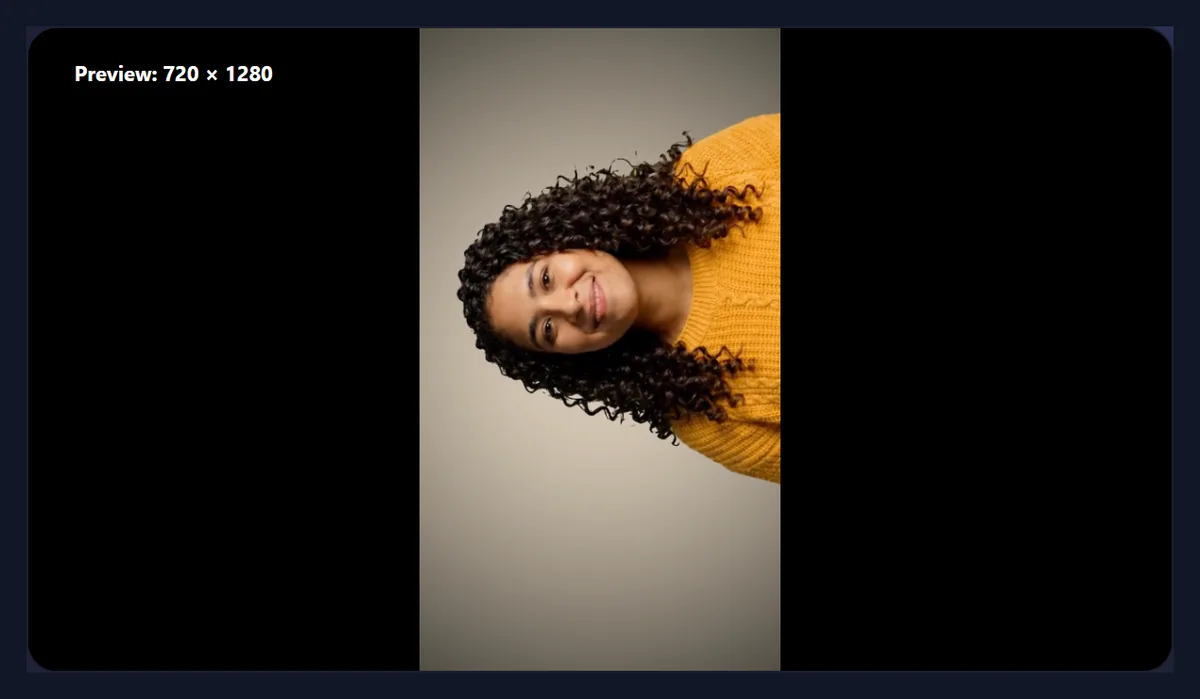
The sideways sample, 720 × 1280, became a 1280 × 720 video the right way up, with its sound and all 144 frames. Nothing is uploaded.
How to rotate a video
- Open a video From your phone or computer.
- Choose a turn 90° right, 180° or 90° left.
- Mirror or straighten If you need to; the preview updates.
- Rotate and download An MP4 with the sound.
Rotate a sideways video upright
A real recording of this tool: a video saved on its side opened, turned 90° right, straightened, and rotated into a new MP4.
- A video saved on its side is opened.
- It is turned 90° right, upright again.
- The straighten slider is tried.
- The rotated MP4 is made.
How much does straightening zoom in?
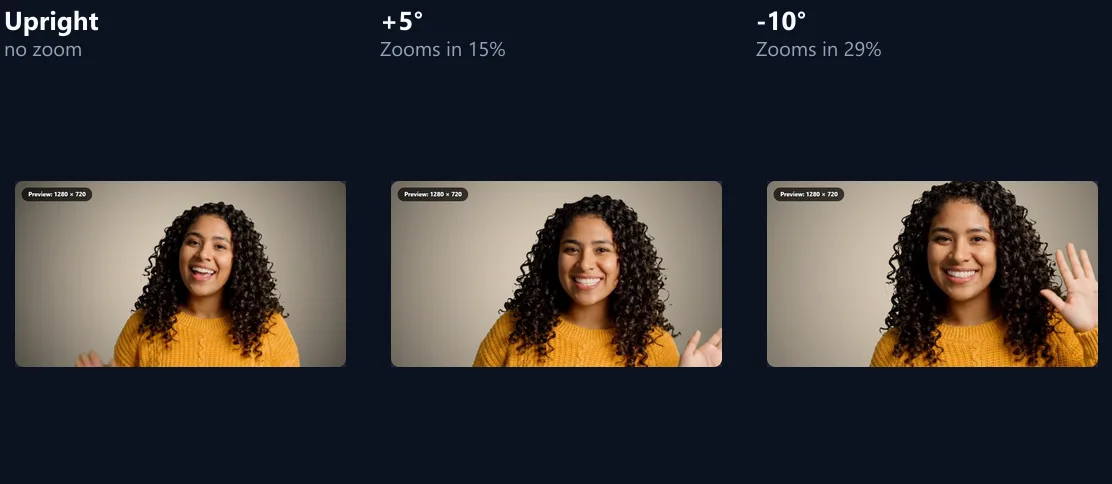
More than people expect. Turning a picture by a few degrees leaves empty triangles in its corners, so the tool zooms in just enough to hide them, and that zoom grows quickly: on the sample, turned upright to 1280 × 720, straightening by 1° needed a 3% zoom, 3° needed 9%, 5° needed 15% and 10° needed 29%. The figure under the slider always shows the zoom for the angle you set.
The zoom crops the edges of the picture, so straighten by the smallest angle that makes the horizon level. A wide frame like 16:9 needs more zoom for the same angle than a square one, because its long side swings further into the corners.
| Straighten | Zoom needed |
|---|---|
| 1° | 3% |
| 2° | 6% |
| 3° | 9% |
| 5° | 15% |
| 8° | 24% |
| 10° | 29% |
| 15° | 43% |
How do you rotate a video?
Open the video and choose a turn: 90° right, 180° or 90° left. The preview shows the result at once, and its label gives the new size. Add a mirror, a flip or a small straightening angle if you need them, then press Rotate video. The video plays through once while each frame is drawn turned and encoded into a new MP4 with the original sound.
The sample, a 6-second clip saved on its side the way a phone sometimes saves one (720 × 1280), became a 1280 × 720 MP4 the right way up, with all 144 frames, in 14 seconds.
Which way should I turn it?
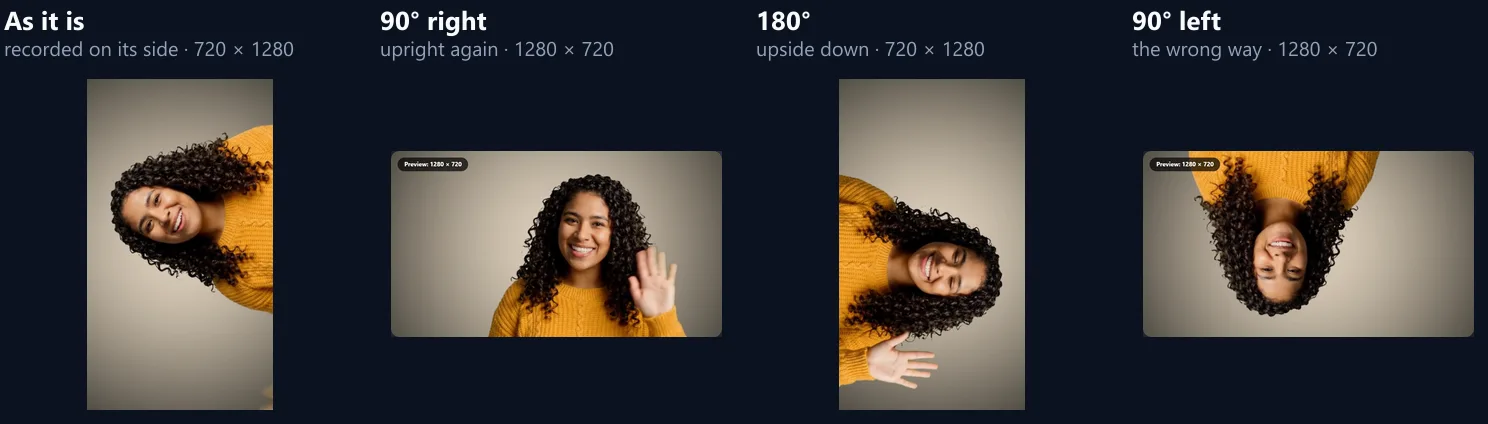
Turn it the way that brings the top of the picture to the top. If the top of the picture is on the left, as in the sample, choose 90° right; if it is on the right, choose 90° left; if the picture is upside down, choose 180°. The figure shows the sample with each turn: only 90° right puts her upright.
A quarter turn swaps the width and the height, so a landscape video becomes portrait and the other way round. A half turn keeps the size.
How do I mirror or flip a video?
Mirror left–right swaps the left and right of the picture, as a mirror does: useful for selfie videos where text reads backwards, or to make someone face into the frame. Flip upside down turns the picture over top to bottom. Both can be combined with any turn.
Mirroring also reverses any writing in the picture, so check signs and labels afterwards.
How do I straighten a tilted video?
Drag the Straighten slider, from 15° one way to 15° the other in half-degree steps, until the horizon or a wall is level in the preview. The tool turns the picture by that angle and zooms in just enough that no empty corner shows, keeping the output the same size.
Use a straight line in the picture as your guide: a horizon, a door frame, a table edge. The figure shows the sample upright, at +5° and at −10°, with the zoom each needed.
Why does my video look sideways in some apps but not others?
Phones often save a video in the shape of the camera sensor and add a note saying how to turn it when playing. Most phone galleries and browsers read the note; some editors, players and websites ignore it, so the same video looks right in one app and sideways in another.
This tool does not rely on the note: it turns the pixels themselves and writes a new video with no rotation note, so it plays the same way everywhere.
Will rotating lose quality?
Very little. The video is re-encoded as H.264 at a generous bitrate, at least 4 megabits a second, at the same size as the original (or smaller if you choose). Straightening zooms in slightly, which enlarges the picture a little, so a big straightening angle softens it slightly.
The rotated sample came to 3.43 MB. Straightened by 5° and mirrored as well, it was 3.44 MB, the same size and frame count.
Does the rotated video keep its sound?
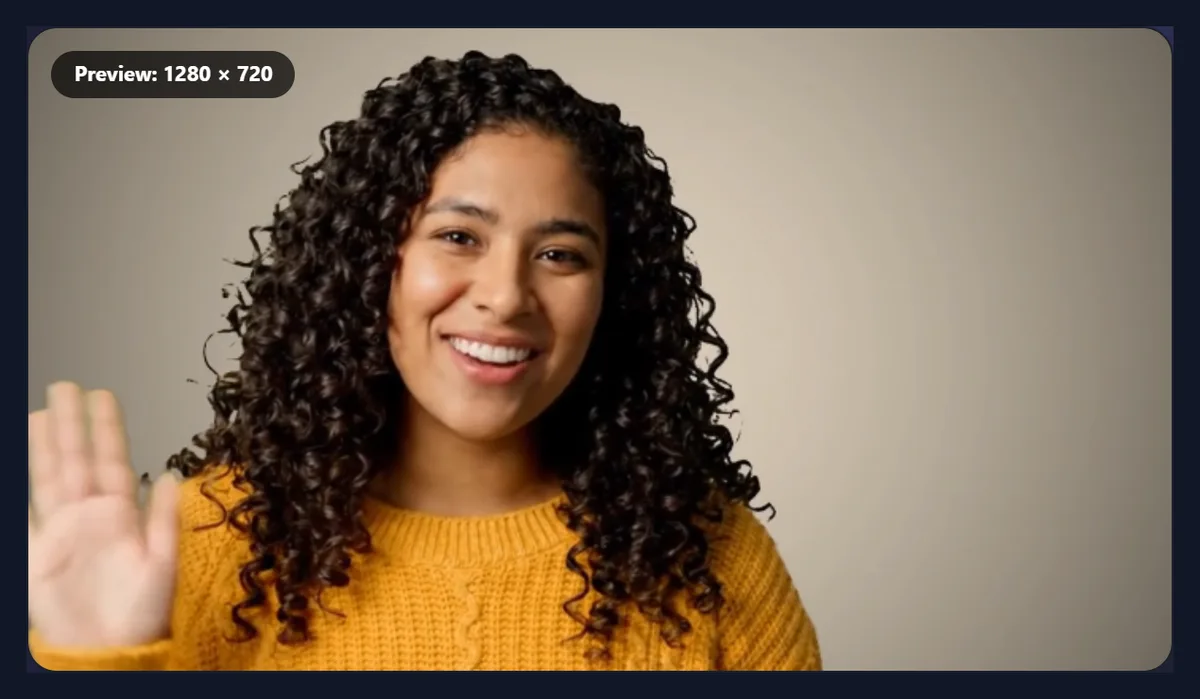
Yes. The sound is taken from the original file and written into the new MP4 as AAC, in sync with the picture. Choose Remove sound for a silent video.
Rotating never changes the timing: the new video has the same frames at the same moments as the original.
Can I make the rotated video smaller?
Choose Up to 1080p or Up to 720p, and the longer side is scaled down to 1,920 or 1,280 pixels if it is larger; Same keeps the size. A smaller picture makes a smaller file and takes no longer to make.
A 4K phone video is often more than a chat app or email needs; 1080p is plenty for most sharing.
How long does rotating take?
About twice the video's length: the video plays through at half speed (a quarter for 4K) so that no frame arrives while the one before is still being encoded. The page tells you how long it will take before you start. If the browser still misses frames, the tool reads the video again more slowly, so every frame is in the MP4.
Keep the tab open and in front while it works; a hidden tab is slowed by the browser.
Will the rotated video have black bars?
Not in the file: a quarter turn swaps the width and height, so a landscape video becomes a portrait one of the same pixels, with nothing added. Players show black bars only when the shape of the video and the shape of the screen differ, as when a portrait video plays on a landscape monitor.
To fill a different shape on purpose, use the video resizer or crop videos after rotating.
How do I find the right straightening angle?
Pause on a frame with a long straight line, a horizon, a doorway, the edge of a table, and move the Straighten slider half a degree at a time until that line is level with the edge of the preview.
Remember the zoom that comes with it: straighten by the smallest angle that looks level, and keep important things away from the edges.
Is my original video changed?
No. The tool reads your video and writes a new MP4; the original file stays exactly as it was on your device. To undo a rotation, keep using the original, or rotate the new file back the other way.
The new file is named after the original, so both can sit side by side.
What can I do after rotating?
Anything the other video tools do: crop it to a new shape, resize it for Reels or Stories, add text or music, or join it with other clips. Rotate first, so the later steps see the picture the right way up.
For a still image, use the rotate image tool instead.
Should I mirror or rotate?
Rotate when the picture is turned: the top of the scene is at a side or at the bottom. Mirror when the picture is reversed: writing reads backwards, as in many front-camera selfie videos, but up is still up. A video can need both, which is why the tool lets you turn and mirror in one go.
If text in the video reads backwards after rotating, add Mirror left–right; if it still looks wrong, try the other turn.
Which way round should a video be for each app?
Upright (portrait, taller than wide) for Reels, Stories, TikTok, Shorts and WhatsApp status; landscape (wider than tall) for YouTube, TVs, presentations and most websites. Turn the video so its people and horizon are upright first; then, if the shape is wrong for where it is going, crop it or resize it rather than turning it sideways.
A sideways video posted to a phone app plays sideways for everyone, so it is worth the minute it takes to fix.
Can I rotate a long video?
Yes, there is no length limit, only time and memory: rotating takes about twice the video's length, so a ten-minute video takes about twenty minutes, and the tab must stay open and in front. For long or 4K videos, choose Up to 1080p to keep the phone or computer responsive.
If you only need part of a long video, cut it first with the video splitter and rotate just that part.
Can I rotate a video on my phone?
Yes, in a current browser on Android or an iPhone. Choose the video from your gallery, turn it and save the MP4 to your downloads. Keep the screen on while it works.
Long 4K videos use a lot of memory on a phone; choose Up to 1080p for them.
Which videos can I rotate?
Any video your browser can play: MP4 and MOV from phones, WebM, MKV and more. The result is always an MP4 with H.264 video and AAC sound, which plays almost everywhere.
If a video will not open, your browser cannot play its codec; try Chrome or Edge.
Is my video uploaded?
No. The video is opened, turned and encoded inside your browser tab. Nothing is sent to HueFold or anyone else, and there is no watermark or sign-up.
Because nothing is uploaded, large videos are not slowed by your internet connection.
Why is the Rotate button greyed out?
Because nothing would change: the turn is set to As it is, with no mirror, flip or straightening. Choose a turn or another change and the button comes back.
If the page says it cannot write MP4 at this size, choose Up to 1080p; if it cannot read frames, use a current Chrome, Edge or Safari.
Frequently asked questions
How do I rotate a video 90 degrees?
Open it, choose 90° right or 90° left, and press Rotate video.
Can I rotate a video by any angle?
Turns of 90° and 180°, plus straightening of up to 15° either way.
Can I mirror a video?
Yes. Choose Mirror left–right.
Does it keep the sound?
Yes, unless you choose Remove sound.
Will it lose quality?
Very little; it is re-encoded at a high bitrate.
Why does straightening zoom in?
To hide the empty corners a tilted picture leaves.
Is my video uploaded?
No. Everything happens in your browser.
Is there a watermark?
No.
Related tools
- Crop Videos — Cut the frame down.
- Video Resizer — Resize for Reels and Stories.
- Video to MP4 — Convert any video to MP4.
- Merge Videos — Join clips into one.
- Remove Audio From Video — Silence a video.
- Add Text to Video — Titles and captions.