Sound Effects for Video
Add whooshes, pops, dings and more to a video in your browser: twelve effects made on the page, each placed at its moment with its own volume, free to use.
Updated
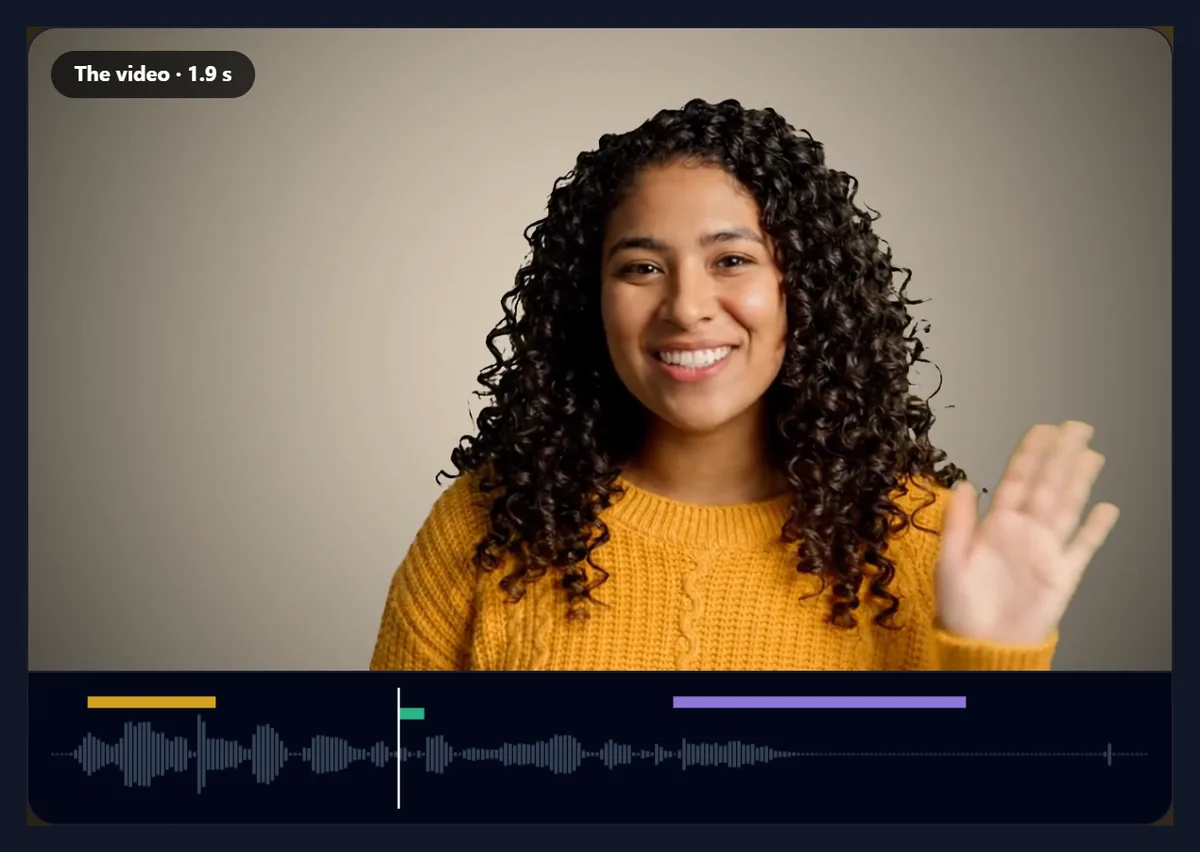
How do you add sound effects to a video?
Open a video, move the playhead to a moment and press an effect to drop it there. Adjust each effect's timing and volume, preview the mix with the picture, and press Add the effects to the video to save an MP4.
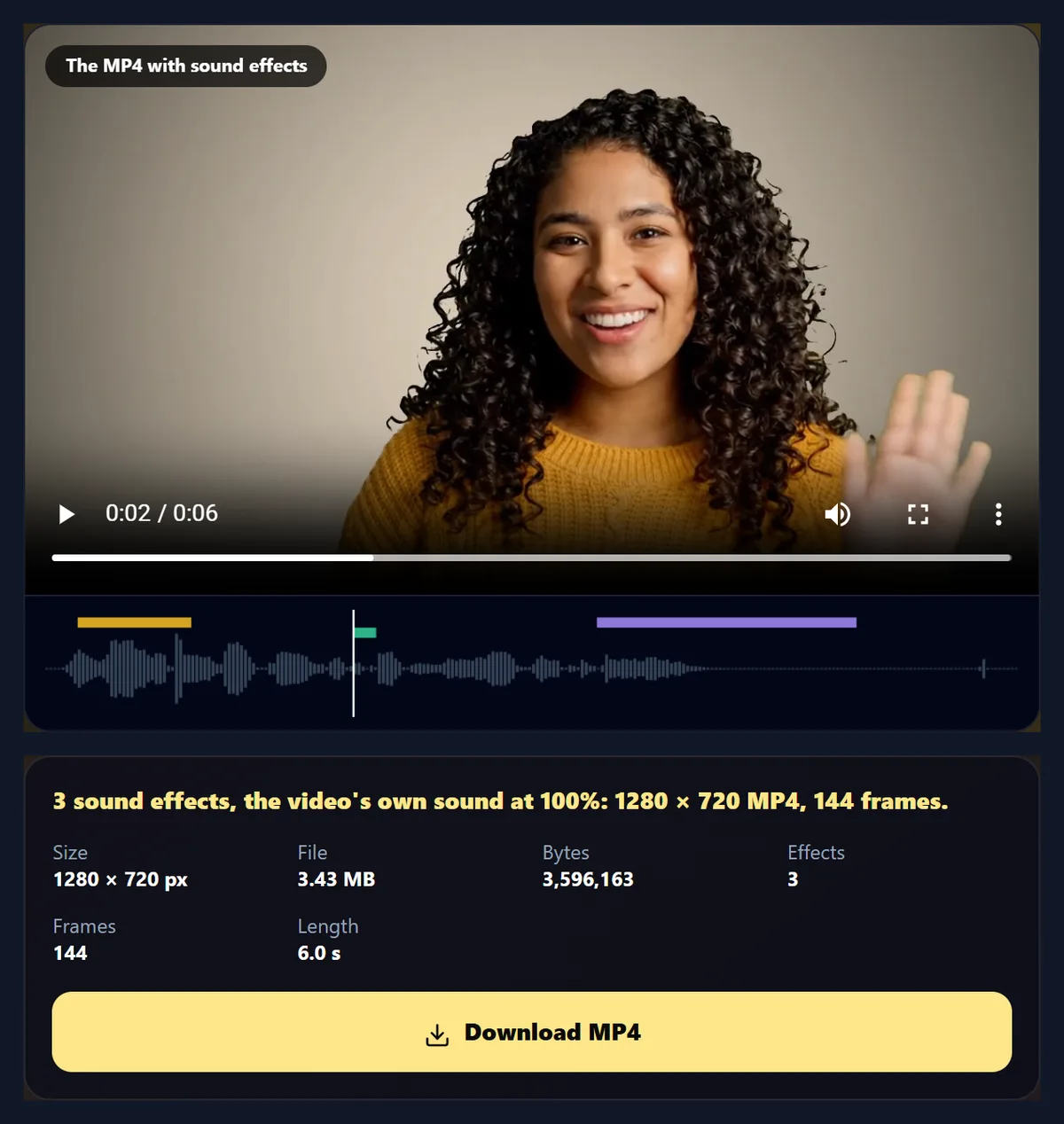
The sample with a whoosh, a pop and a ding became a 1280 × 720 MP4 with all 144 frames. The effects are generated in your browser, so they are free to use anywhere.
How to add sound effects to a video
- Open a video Any video your browser plays.
- Move the playhead To the moment that needs a sound.
- Press an effect It is added there; set its timing and volume.
- Preview and save Hear the mix, then make the MP4.
Add sound effects to a video
A real recording of this tool: the sample opened, two effects listened to, a chime added at the playhead, and the MP4 made with four effects.
- The sample video is opened with three effects already placed.
- The boom and the chime are played to hear them.
- The playhead is moved and a chime is added there.
- The MP4 is made with all four effects.
How long is each sound effect?
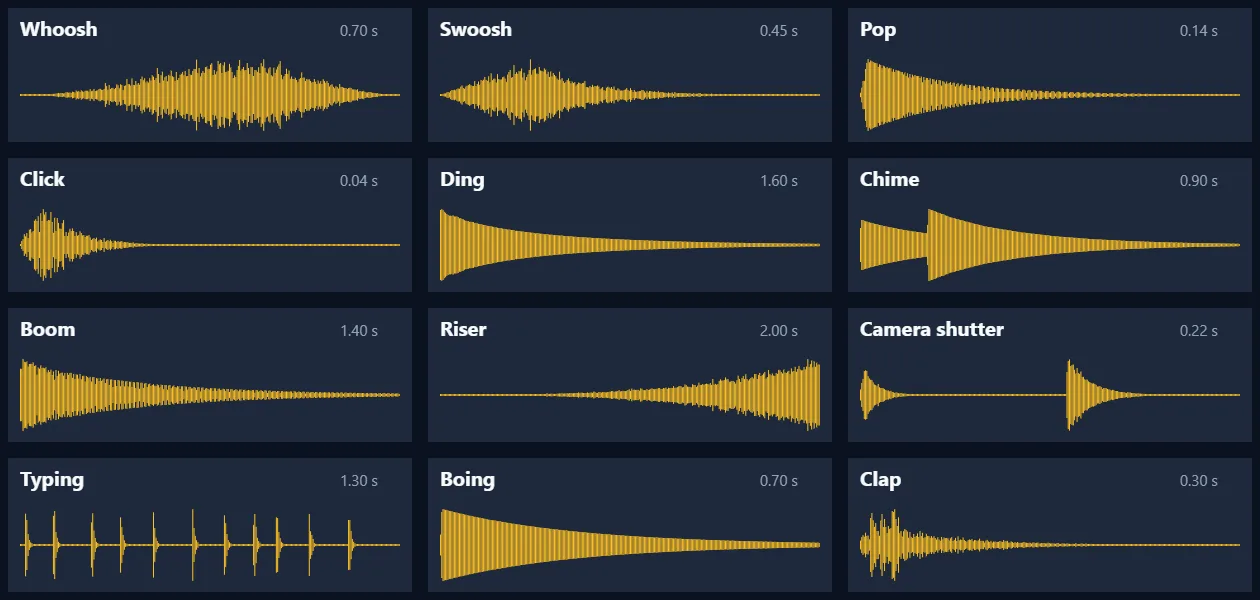
From a blink to a couple of seconds. The click lasts 0.04 seconds and the riser 2.0, building tension the whole way; most are under a second, which is what a cut, a tap or a reveal needs. The coloured blocks on the tool's timeline are drawn at each effect's real length, so you can see what overlaps.
Every effect peaks at the same level, 1 dB below the loudest a file can hold, but they do not sound equally loud: a boing is a dense, steady sound (-11.4 dB on average), a typing mostly short clicks with silence between them (-24.3 dB). Use each effect's volume slider to balance them.
| Effect | Length | Average level | Sounds like |
|---|---|---|---|
| Whoosh | 0.70 s | -15.7 dB | Air rushing past, rising |
| Swoosh | 0.45 s | -19.1 dB | A fast swipe, falling |
| Pop | 0.14 s | -13.6 dB | A bubble or a cork |
| Click | 0.04 s | -18.5 dB | A mouse or a switch |
| Ding | 1.60 s | -16.1 dB | A small bell |
| Chime | 0.90 s | -13.7 dB | A two-note notification |
| Boom | 1.40 s | -12.8 dB | A deep hit for a reveal |
| Riser | 2.00 s | -19.5 dB | Tension building for 2 s |
| Camera shutter | 0.22 s | -20.4 dB | Open and close |
| Typing | 1.30 s | -24.3 dB | A burst of key presses |
| Boing | 0.70 s | -11.4 dB | A cartoon spring |
| Clap | 0.30 s | -20.9 dB | One sharp hand clap |
How do you add sound effects to a video?
Open the video and move the playhead, with the slider or by clicking the timeline under the video, to the moment that needs a sound: a cut, a tap, a text popping up. Press an effect to add it there; it plays once so you hear it. Each effect you add appears in a list with its own timing and volume. Press Preview with the effects to hear the mix with the picture, then Add the effects to the video.
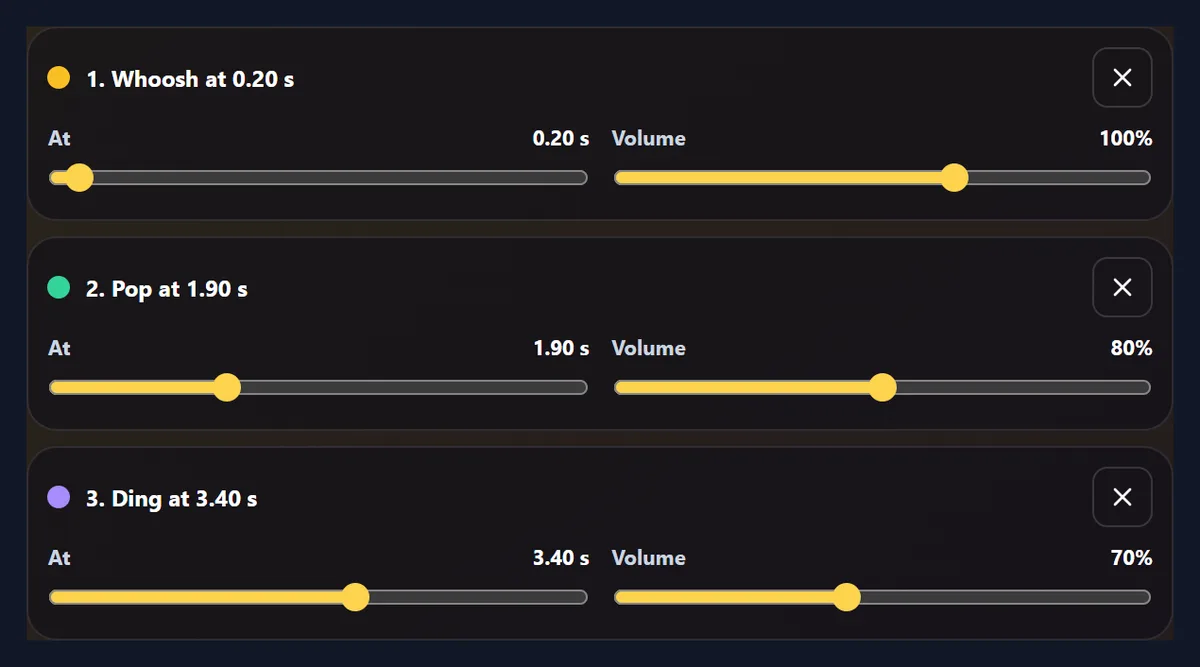
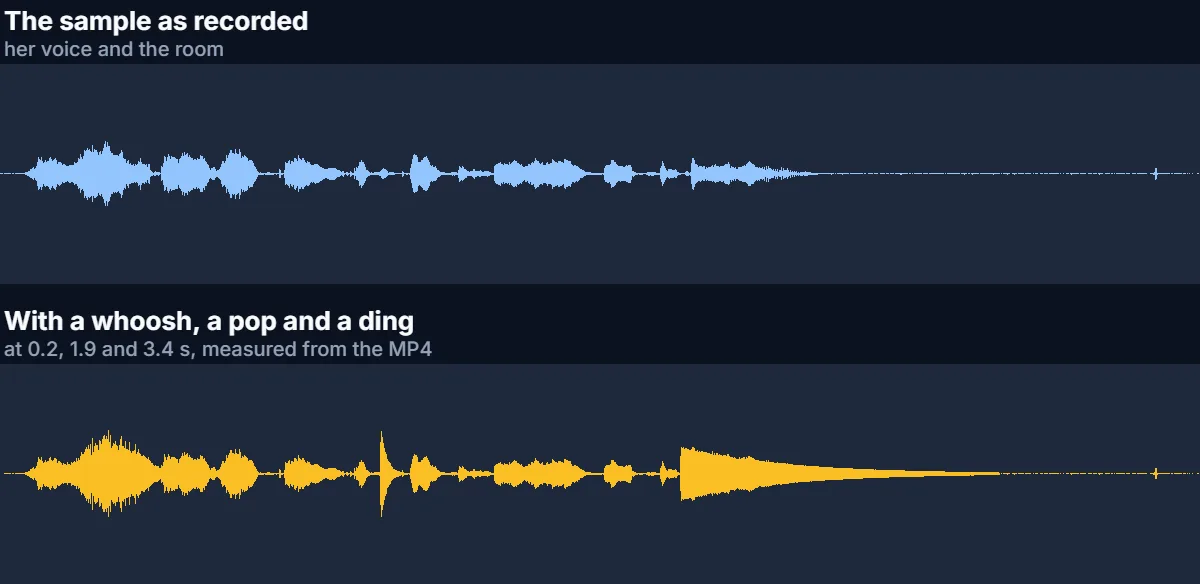
The sample comes with a whoosh at the start, a pop as she waves and a ding as she smiles. The finished MP4 was 1280 × 720 with all 144 frames and AAC sound.
Which sound effects are there?
Whoosh and swoosh for movement and transitions; pop, click and boing for taps, bubbles and comedy; ding and chime for a reveal, a correct answer or a notification; boom for a big moment; riser to build tension before a drop; camera shutter for a photo; typing for text appearing; and clap. Press the play button on any effect to hear it without adding it.
They cover the sounds short social videos use most: transitions, text pop-ups, reveals and reactions.
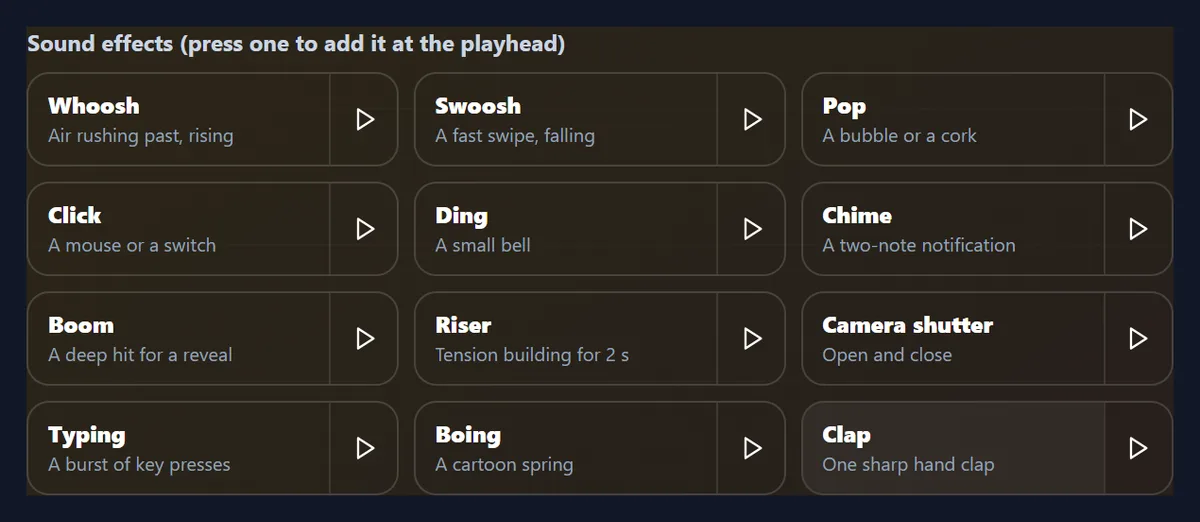
Where do the sound effects come from?
They are made on the page, from scratch, every time: oscillators for the tones, seeded noise for air and clicks, filters that sweep for whooshes and risers, and envelopes for attack and decay. A ding is four sine waves at the inharmonic ratios of a small bell, each fading at its own rate; a boom is a sine falling from 70 to 32 Hz under a thump of low noise. Because the noise is seeded, every effect is exactly the same each time and on every device.
Nothing is recorded or downloaded, so no one owns a recording of them: you can use them in any video, including paid work. The figure shows each effect's waveform as the page makes it.
How do I place an effect on the right moment?
Pause on the frame where something happens, by dragging the playhead or clicking the timeline, and press the effect. Fine-tune it with its At slider, in twentieths of a second. A sound that lands a frame or two early feels tighter than one that is late: put a pop on the frame a text appears, and a whoosh slightly before the cut it leads into.
Effects can overlap; up to 20 can be placed on one video.
How loud should sound effects be?
Quieter than the voice, usually. Effects are there to punctuate, not to cover speech, so for a talking video start each effect at 50% to 80% and the video's own sound at 100%. In a video with music, effects can sit a little louder. The video's own sound can be turned from 0 to 150%, or off, to keep only the effects.
The sample with three effects averaged -18.0 dB, against -20.5 dB for the video alone: short effects add little to the average loudness. But with her voice at 100%, the pop landing on a word peaked at full scale, 0 dB, so it clipped for an instant: when an effect lands on speech, turn one of them down.
Can I hear it before making the video?
Yes. Preview with the effects mixes everything exactly as the MP4 will have it and plays it with the picture, with the video's own sound already in the mix. Change a timing or a volume and preview again; nothing is encoded until you press Add the effects.
To hear one effect alone, press its play button.
What do I get?
An MP4 with the same picture, re-encoded as H.264 at the video's size, and a new AAC soundtrack: the video's own sound with every effect mixed in at its moment. The sample's MP4 was 3.43 MB.
Every frame keeps its own moment, so the effects stay exactly where you put them.
What are sound effects good for?
Reels, TikToks and Shorts use them to mark cuts and text pop-ups and keep attention; tutorials use clicks and dings to mark steps; product videos use a whoosh for each feature; memes use a boing or a boom for timing a joke. A little goes a long way: three or four well-placed effects in a 15-second clip is plenty.
For music under the whole video, use the add music to video tool, before or after adding effects.
How long does it take?
Mixing takes a moment; writing the MP4 takes about twice the video's length, because the video plays through at half speed so that no frame is missed. The page says how long before you start.
Keep the tab in front while it works; browsers slow hidden tabs.
Which effect suits which moment?
A whoosh or swoosh for a cut, a swipe or something flying past; a pop for a caption, a sticker or a bubble appearing; a click for a button, a menu or a step in a tutorial; a ding or chime for a right answer, a reveal or a notification; a boom for a big reveal or a logo landing; a riser for the two seconds before a drop or a reveal; a camera shutter for a photo or a freeze frame; typing for text being written; a boing for a bounce or a joke; a clap for applause or a beat.
Matching the sound to the movement on screen is what makes an effect feel right: a whoosh that starts as a move begins and ends as it stops.
Can I layer effects on top of each other?
Yes: effects can overlap, and each plays in full at its own volume. A riser that ends in a boom is a classic build-up; a whoosh under a pop makes a transition with a hit at the end. Keep layered effects a little quieter each, since their levels add up.
The timeline under the video draws each effect as a block as long as it lasts, so overlaps are easy to see and adjust.
How do I change or remove an effect?
Every placed effect has its own row in the list: drag its At slider to move it, its Volume slider to balance it, or press its cross to remove it. The list is kept in time order, so the effects read from the start of the video to the end.
Nothing is fixed until you press Add the effects, and you can go back to the effects after making the MP4 to change them and make it again.
Can I add sound effects on my phone?
Yes, in a current browser on Android or an iPhone: open the video from your gallery, tap the effects in, and save the MP4. Turn the sound on to hear the effects as you add them.
Keep the screen on while the MP4 is made.
Is my video uploaded?
No. The effects are made, mixed and encoded inside your browser tab with your video. Nothing is sent to HueFold or anyone else, and there is no watermark or sign-up.
That also means the effects work offline once the page has loaded.
Why can I not hear the effects?
Check that your device is not muted and that the effect's volume is above 10%. Browsers only play sound after you have clicked something on the page, so press an effect's play button once if the preview is silent.
If the page says it cannot write MP4 with sound, use a current Chrome, Edge or Safari.
Frequently asked questions
How do I add sound effects to a video?
Move the playhead to a moment and press an effect, then make the MP4.
Are the sound effects free to use?
Yes. They are generated on the page, so no one owns a recording of them.
Which sound effects are there?
Whoosh, swoosh, pop, click, ding, chime, boom, riser, camera shutter, typing, boing and clap.
How many effects can I add?
Up to 20 on one video.
Can I change an effect’s volume?
Yes, from 10% to 150%, each on its own.
Does the video keep its own sound?
Yes, at the volume you choose, or none.
Is my video uploaded?
No. Everything happens in your browser.
Is there a watermark?
No.
Related tools
- Add Music to Video — Put a song under it.
- AI Sound Effect Generator — Describe a sound and get it.
- Remove Audio From Video — Silence a video first.
- Add Text to Video — Text pop-ups to put sounds on.
- Video Transitions — Cuts that need a whoosh.
- Beat Sync — Cut clips to music.