Sticky Notes
Make a sticky note board online: add notes in eight colours, drag and resize them, start from a to-do, week, retro or brainstorm board, and save it as a PNG or PDF. Free, kept in your browser.
Updated
How do you make sticky notes online?
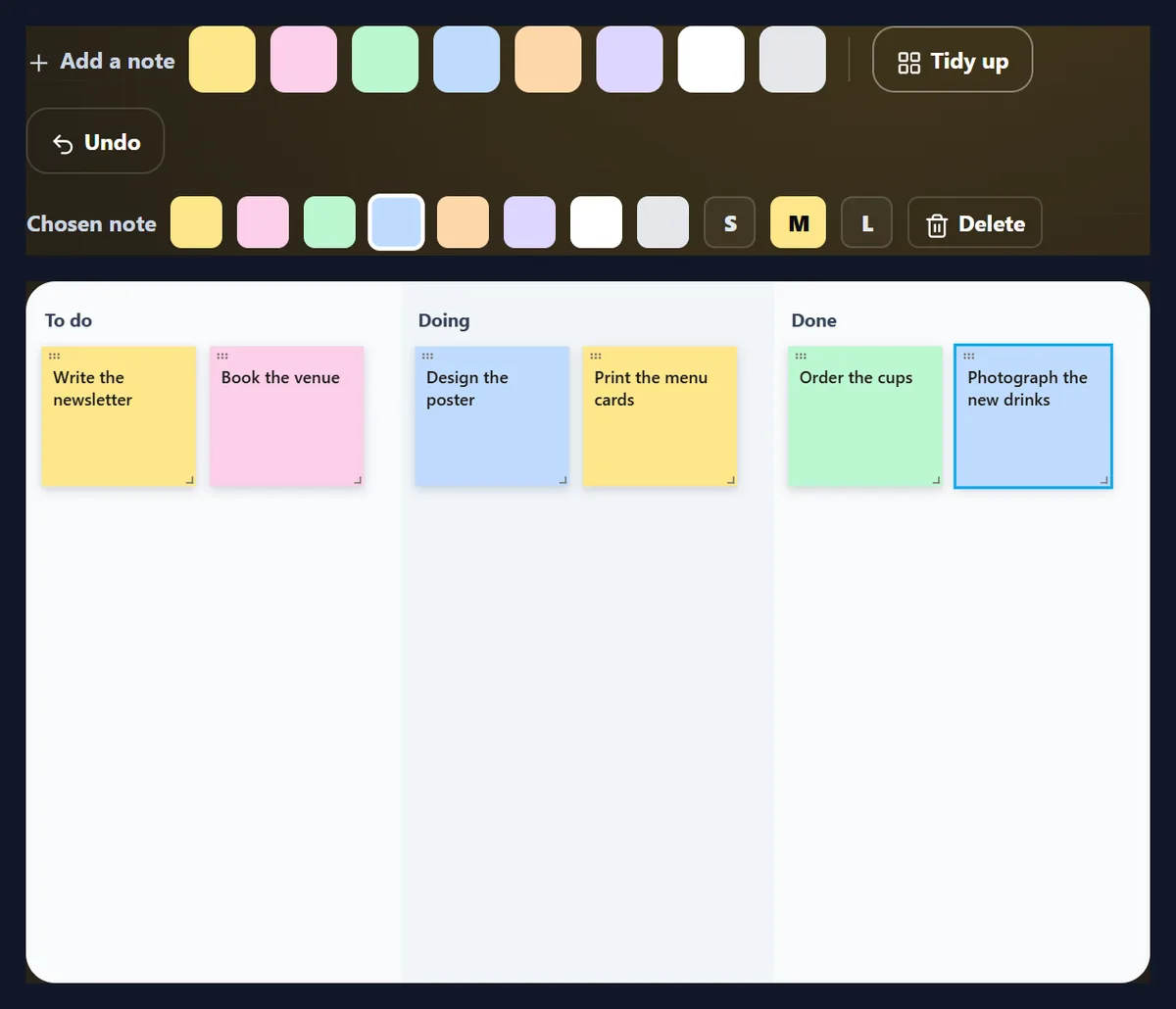
Pick a board here, click a colour to add a note, type, and drag it where it belongs; the board saves itself in your browser as you go, and downloads as a PNG, a PDF or a board file to open elsewhere.
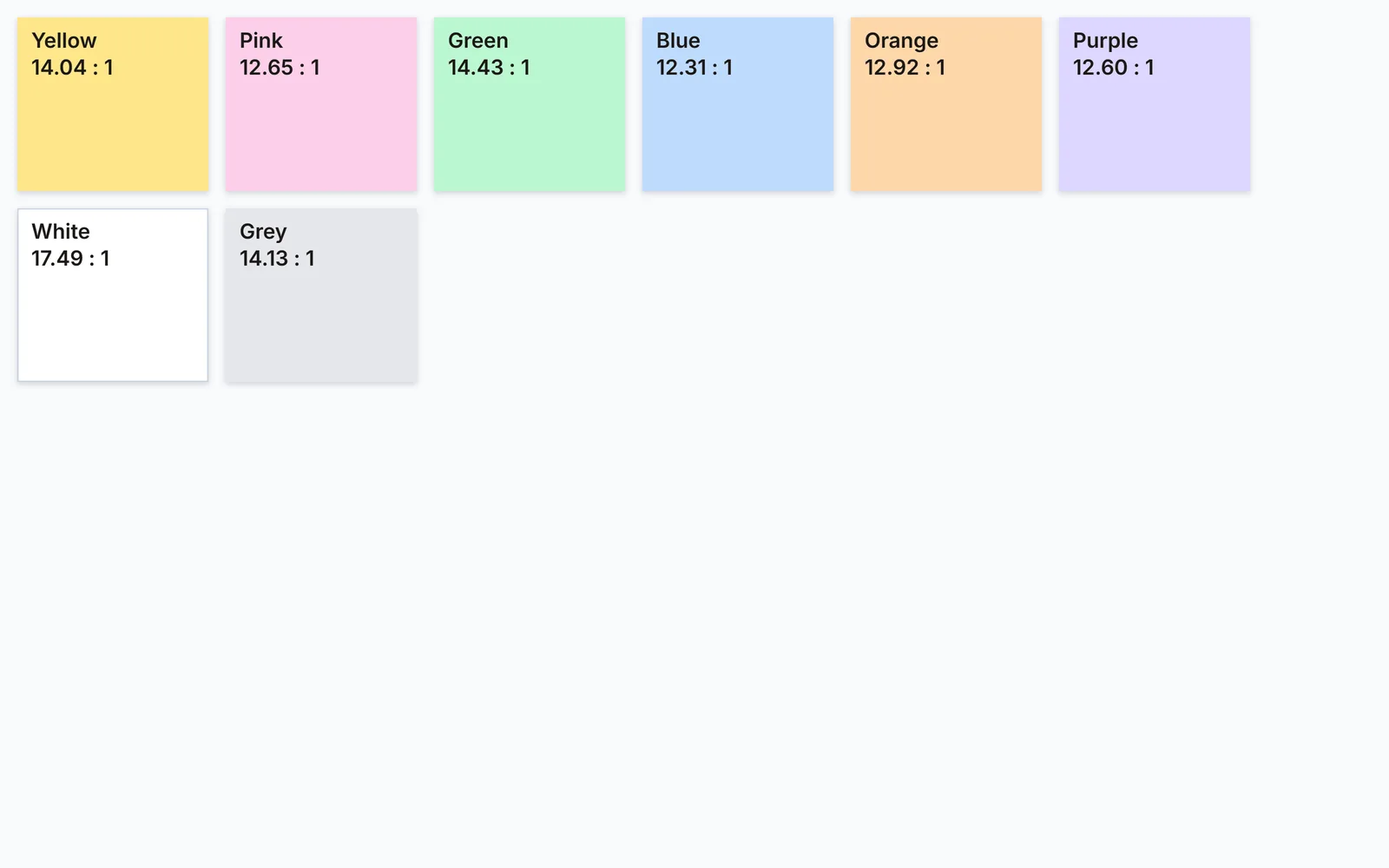
Every note colour keeps its text at a contrast of 12.31 to 1 or more, the PNG is 3,200 by 2,000 pixels (about 207.5 KB in our tests), and the six-note task board took 785 bytes to save.
How to make a sticky note board
- Pick a board Blank, tasks, week, retro or brainstorm.
- Add notes Click a colour, then type.
- Arrange them Drag, resize, recolour, Tidy up.
- Save it PNG, PDF, or a board file.
Make a sticky note board
A real recording of this tool: two boards tried, a purple note added and typed, dragged to a column, the board tidied and saved as a PNG.
- The Retrospective board is chosen, then the To do, Doing, Done board.
- A purple note is added and its text typed.
- The note is dragged by its top strip into another column.
- Tidy up lines the notes up.
- The board is saved as a PNG.
Which note colours are easiest to read?
All eight: the dark text on every note colour has a contrast of at least 12.31 to 1, well above the 7 to 1 that the Web Content Accessibility Guidelines ask for at their strictest level (AAA), and far above the 4.5 to 1 minimum for body text. White is the highest at 17.49; blue the lowest at 12.31.
The ratios are worked out from the colours themselves with the WCAG formula, so they hold on any screen that shows the colours correctly; on a very dim screen or in bright sunlight everything looks flatter, but the order stays the same.
| Colour | Note colour | Contrast | WCAG level |
|---|---|---|---|
| Yellow | #fde68a | 14.04 : 1 | AAA (7:1 and above) |
| Pink | #fbcfe8 | 12.65 : 1 | AAA (7:1 and above) |
| Green | #bbf7d0 | 14.43 : 1 | AAA (7:1 and above) |
| Blue | #bfdbfe | 12.31 : 1 | AAA (7:1 and above) |
| Orange | #fed7aa | 12.92 : 1 | AAA (7:1 and above) |
| Purple | #ddd6fe | 12.60 : 1 | AAA (7:1 and above) |
| White | #ffffff | 17.49 : 1 | AAA (7:1 and above) |
| Grey | #e5e7eb | 14.13 : 1 | AAA (7:1 and above) |
How do I make sticky notes online?
Pick a board to start from, or keep the blank one. Click a colour in the Add a note row to add a note in that colour, and type: the new note is ready for text straight away. Drag notes by their top strip, make them bigger from their bottom-right corner, and click any note to change its colour or text size or to delete it.
Everything you do is saved in this browser as you go. When the board is ready, download it as a PNG picture or a PDF, or save the board file to open it again on another computer.
Which boards can I start from?
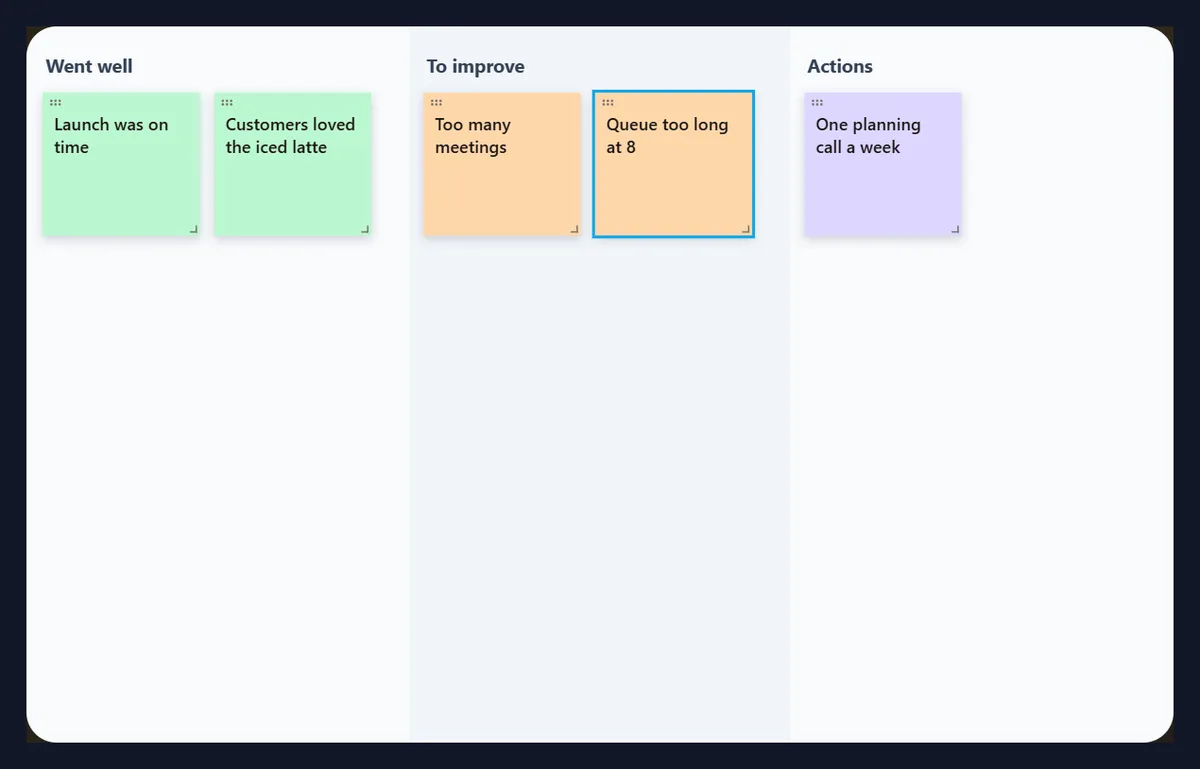
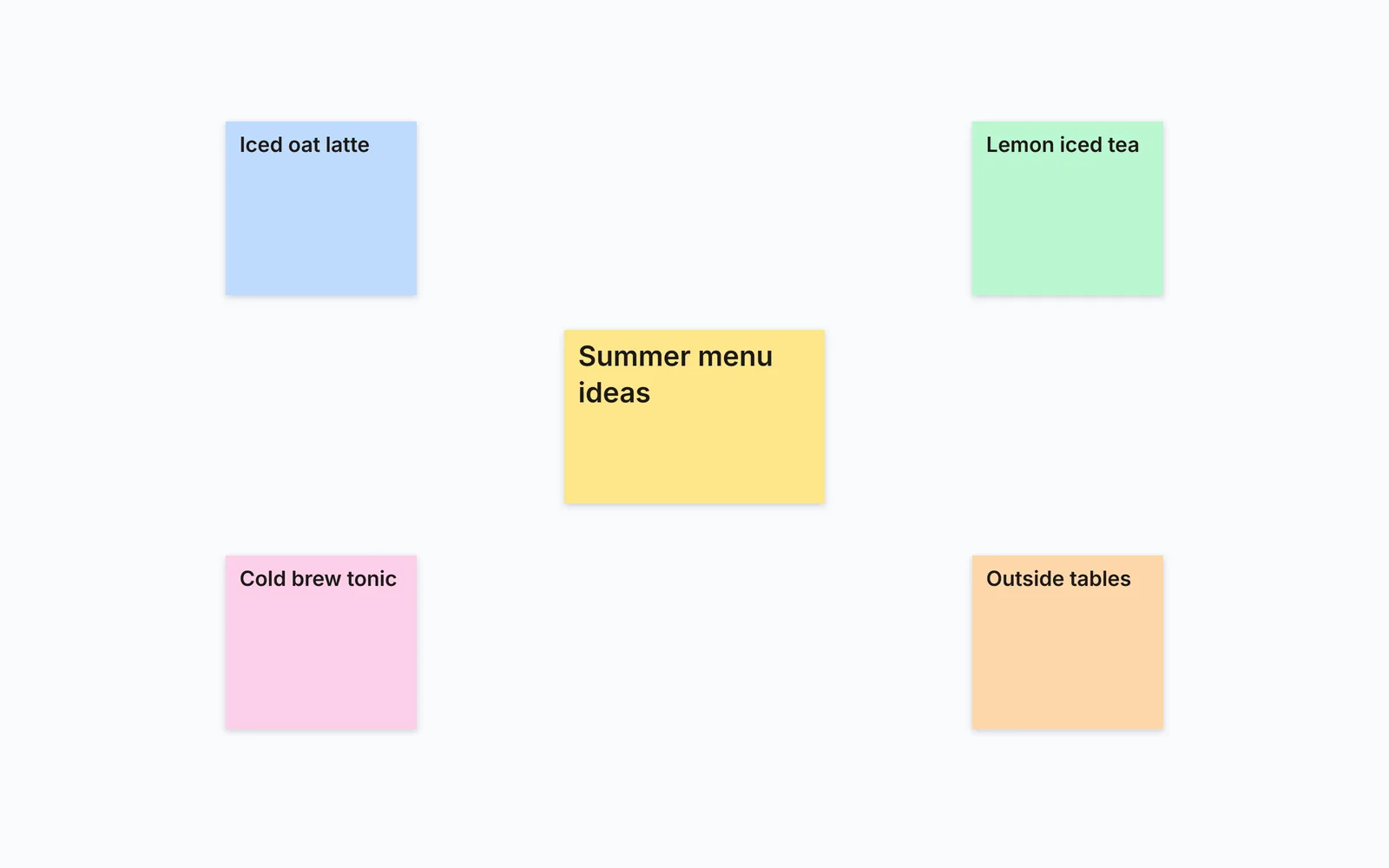
Five. Blank is an empty board. To do · Doing · Done has three columns for tasks moving from left to right. Week plan has a column for each weekday. Retrospective has Went well, To improve and Actions, for looking back on a project with a team. Brainstorm puts a large topic note in the middle with ideas around it.
Each comes with a few example notes to show how it is used; change or delete them. Picking another board replaces the one on screen, and Undo brings it back.
| Board | Columns | Example notes |
|---|---|---|
| Blank | None | None |
| To do · Doing · Done | To do, Doing, Done | 4 |
| Week plan | Monday to Friday | 3 |
| Retrospective | Went well, To improve, Actions | 3 |
| Brainstorm | None: a topic in the middle | 5, including the topic |
How do I move, resize and write on notes?
Drag a note by the strip along its top to move it, and drag its bottom-right corner to resize it; notes stay on the board and are never smaller than 140 by 140 board units. Click the text area of a note to write; a note holds as many lines as fit, and the text wraps by itself.
With the keyboard, Tab to a note and use the arrow keys to move it 10 units at a time, or 50 with Shift held; Delete removes the chosen note. Clicking a note also brings it to the front of any it overlaps.
How do I change a note’s colour or size?
Click the note. A Chosen note row appears under the colours: pick one of its eight colours to recolour the note, S, M or L to change its text size (18, 24 or 32 board units, and new notes use the size you picked last), or Delete. Clicking an empty part of the board puts the row away again.
The colours are the same on screen, in the PNG and in the PDF, and each keeps its text readable at the same contrast.
Can I make the notes bigger on screen?
Yes, with Zoom. The board is 1,600 by 1,000 units; Fit shows all of it, which in this 605-pixel-wide frame means 38% of its full size: good for seeing the whole plan, small for reading. 60% and 100% show the notes nearer their real size, and the board scrolls inside its frame.
On a phone, use 100% to write and Fit to see the whole board. Zooming changes only the view, never the notes or the downloads.
What does Tidy up do?
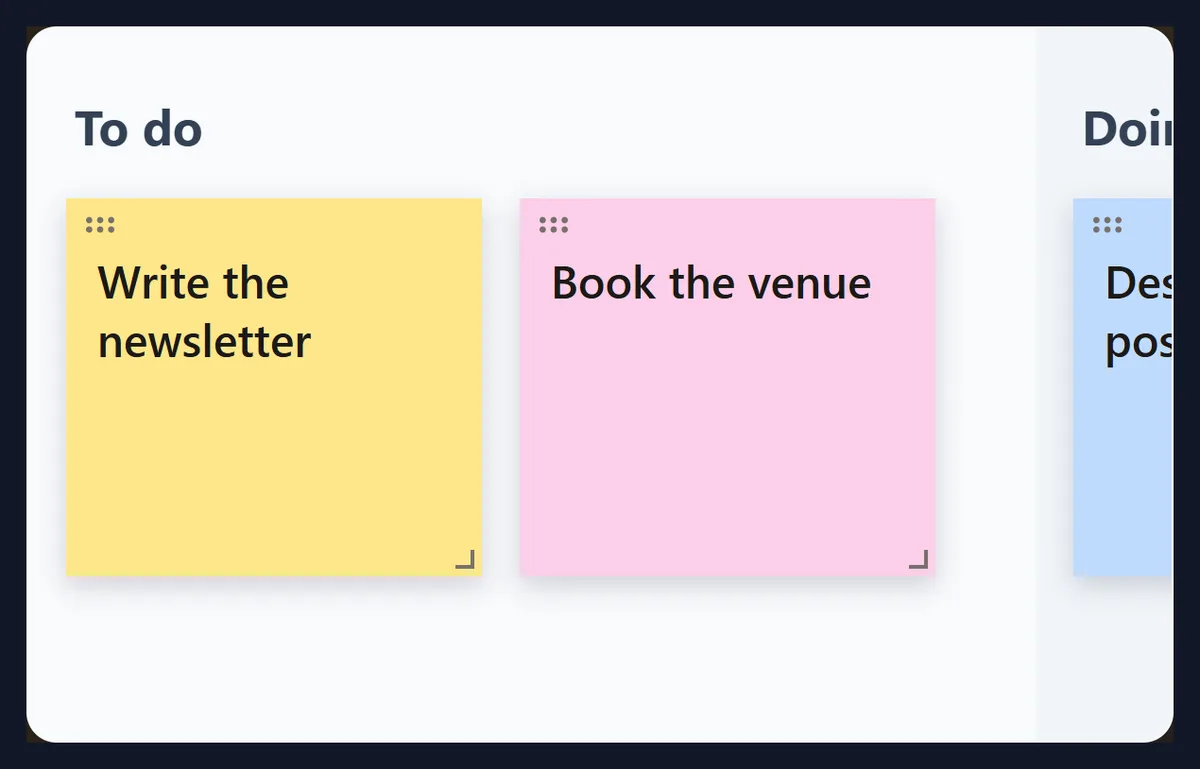
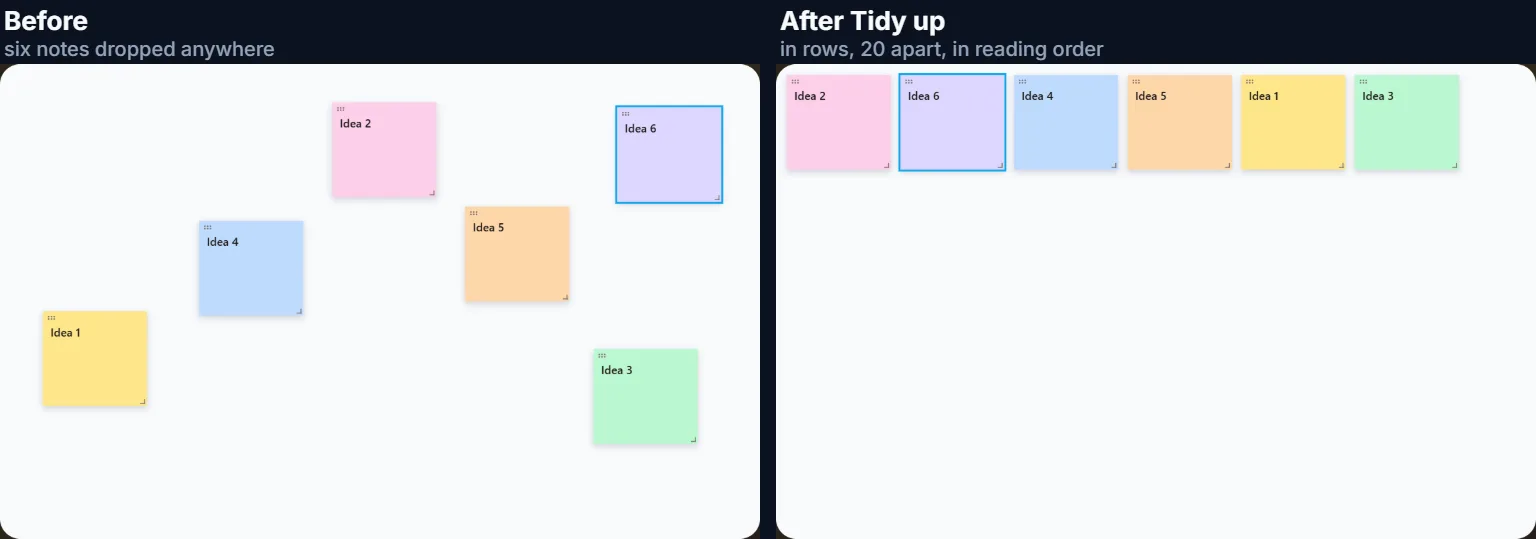
It lines the notes up. In each column (or across the whole board when there are none) the notes are put in reading order, top to bottom and left to right, and laid out in rows 20 units apart, starting a new row when one is full. Notes keep their size, colour and text.
Use it after a brainstorm, when notes have been dropped anywhere; Undo puts them back if you preferred them as they were.
Can I undo a mistake?
Yes: Undo steps back through the last 30 changes, such as adding, deleting, moving or recolouring a note, tidying, or switching boards. Typing into a note counts as one change from the moment you click into it.
Undo works while the page is open; closing it keeps the board but not the list of changes.
Are my notes saved?
Yes, in this browser: the board is saved on this device a moment after every change, and is back when you return to the page. The line at the top of the tool shows it, such as “Saved in this browser · 785 bytes” for the six-note task board. Nothing is sent to HueFold, so there is no account and no sign-up.
Because the board lives in the browser, a private window forgets it when closed, clearing the browser's site data removes it, and another browser or device starts with its own board. To keep a copy or move it, save the board file.
How do I move my board to another computer?
Press Save the board file: it downloads a small file (the six-note task board was 785 bytes) holding every note's text, colour, size and place, the board's name and its columns. On the other computer, open this page and press Open a board file.
The file is plain JSON text, so it can be emailed, kept in cloud storage or put in version control. Opening one replaces the board on screen, and Undo brings the old one back.
How do I save the board as a picture?
Press Download PNG. The picture is drawn at twice the board's size, 3,200 by 2,000 pixels, so it stays sharp on large screens and when zoomed. The five boards in our tests made PNGs between 190.6 KB and 220.0 KB.
The PNG shows the board as it is, with the columns and their names, every note with its shadow, and text that does not fit a note cut off with an ellipsis, so make the note bigger first if its whole text must show.
| Board | Notes | PNG size |
|---|---|---|
| To do · Doing · Done | 6 notes | 210.1 KB |
| Blank, eight colours | 8 notes | 207.1 KB |
| Week plan | 5 notes | 209.5 KB |
| Retrospective | 5 notes | 220.0 KB |
| Brainstorm | 5 notes | 190.6 KB |
Can I print my sticky notes?
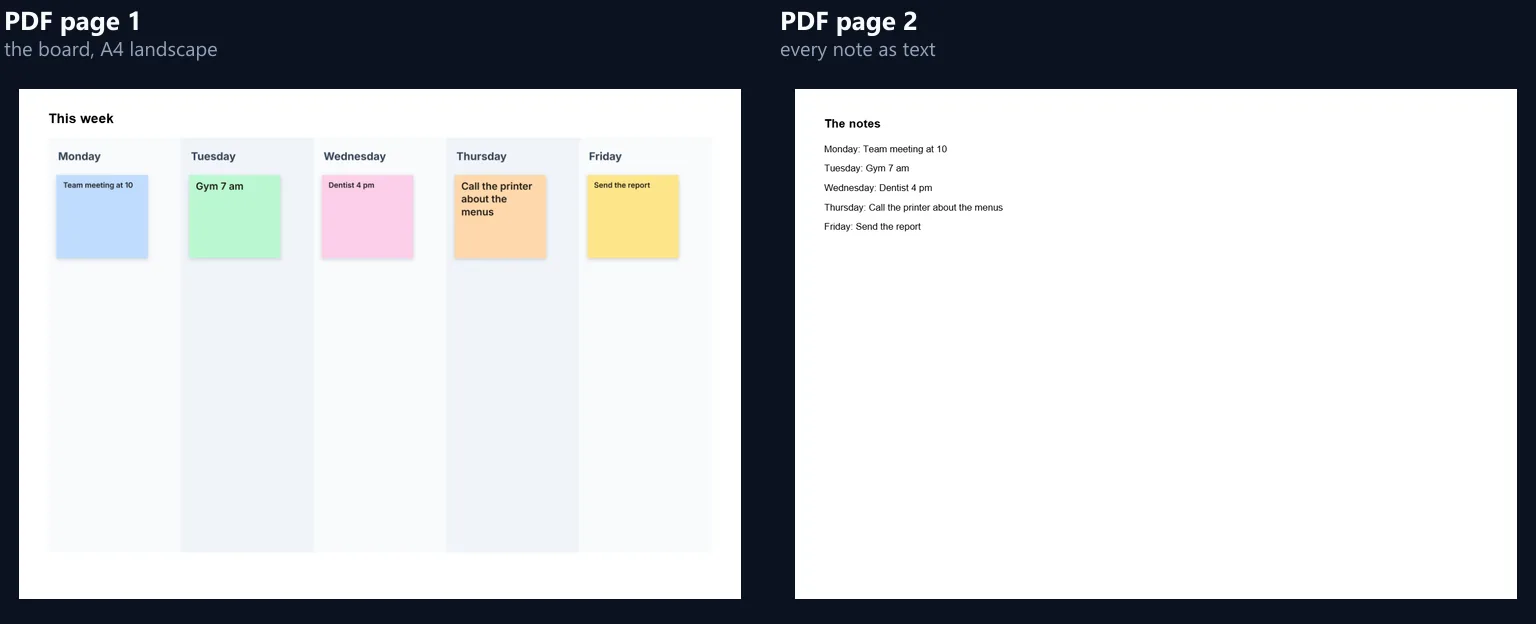
Yes: Download PDF makes an A4 landscape document. Page 1 is the board as a picture under its name; page 2 lists every note's text, with the column it sits in, so it can be searched and copied. The week plan's PDF was 84.6 KB.
The list on page 2 uses the PDF's standard Helvetica font, which covers English and the other Western European languages; notes in other scripts show correctly on the picture page.
What can I use sticky notes for?
Planning tasks with To do · Doing · Done, a week at a glance, a team retrospective, a brainstorm for a launch or a menu, revision notes, a reading list, or the points for a talk in the order you will make them.
For a board of tasks, put one action on each note and move it across as it progresses; short notes are easier to scan than long ones.
How do I use a To do · Doing · Done board?
Write one task on each note and put it in To do. When you start a task, drag it to Doing; when it is finished, to Done. Keep only a few notes in Doing at a time, so work gets finished rather than started, and use colours for people or kinds of work, such as yellow for writing and blue for design.
At the end of a week, save the board as a PNG for the record, delete the Done notes, and carry on with the same board.
How do I run a retrospective with sticky notes?
Share your screen with the Retrospective board open. Give everyone a few minutes to say what went well and what to improve while one person adds a note for each point in the right column; similar notes can be dragged next to each other. Then agree on two or three actions and write each as a note in Actions, with who will do it.
Save the PDF afterwards: page 2 lists every point by column, ready to paste into the meeting notes.
How many notes can a board hold?
Up to 200, each with up to 2,000 characters. That is far more than fits on the board at a readable size; for long lists, use several boards and save each as a file.
There is no limit on how many times you download the board.
Is my board private?
Yes. The notes are kept in this browser on this device and are never uploaded; the PNG, the PDF and the board file are made in the page. Anyone with your device and browser profile could open the page and see the board, as with any notes kept there.
To remove everything, delete the notes or clear this site's data in the browser settings.
Do sticky notes work on a phone?
Yes, with a finger: drag notes by their top strip and resize them from the corner, and tap a note's text to type. Use the 100% zoom to write and Fit to see the whole board.
A phone keeps its own board, separate from your computer's; move one between them with the board file.
Frequently asked questions
Are these sticky notes free?
Yes: no account, no sign-up and no watermark.
Are my notes saved?
Yes, in this browser, a moment after every change.
Are my notes uploaded?
No. They stay on your device.
Can I use my board on another computer?
Yes: save the board file and open it there.
Can I download my sticky notes?
Yes, as a 3,200 × 2,000 PNG, an A4 PDF or a board file.
Can I print them?
Yes, from the PDF: the board on page 1, the notes as text on page 2.
How many notes can I add?
Up to 200 a board.
Can I undo?
Yes, the last 30 changes.
Does it work on a phone?
Yes, with touch; zoom to 100% to write.
Related tools
- Free PDF Converter — Turn the PDF into other formats.
- Summarizer — Shorten long notes.
- Translate — Notes in another language.
- Voice Recorder — Say it instead of typing.
- PDF to JPG — Pages as pictures.
- Add Text to Photo — Words on a picture.