Transcribe Audio to Text
Turn a recording into text: speech recognition writes every word of an MP3, M4A, WAV or a video's sound, up to 30 minutes, laid out as paragraphs with the time each one starts, ready to search, fix, copy and save as text, Word, SRT or VTT.
Updated
How do you transcribe audio to text?
Open the recording here and press Transcribe. The sound is sent to speech recognition a minute or so at a time; the words come back with their times and are laid out as paragraphs, each with the moment it starts, so you can click a time to hear that part again. Fix any word by typing, then copy the text or save it.
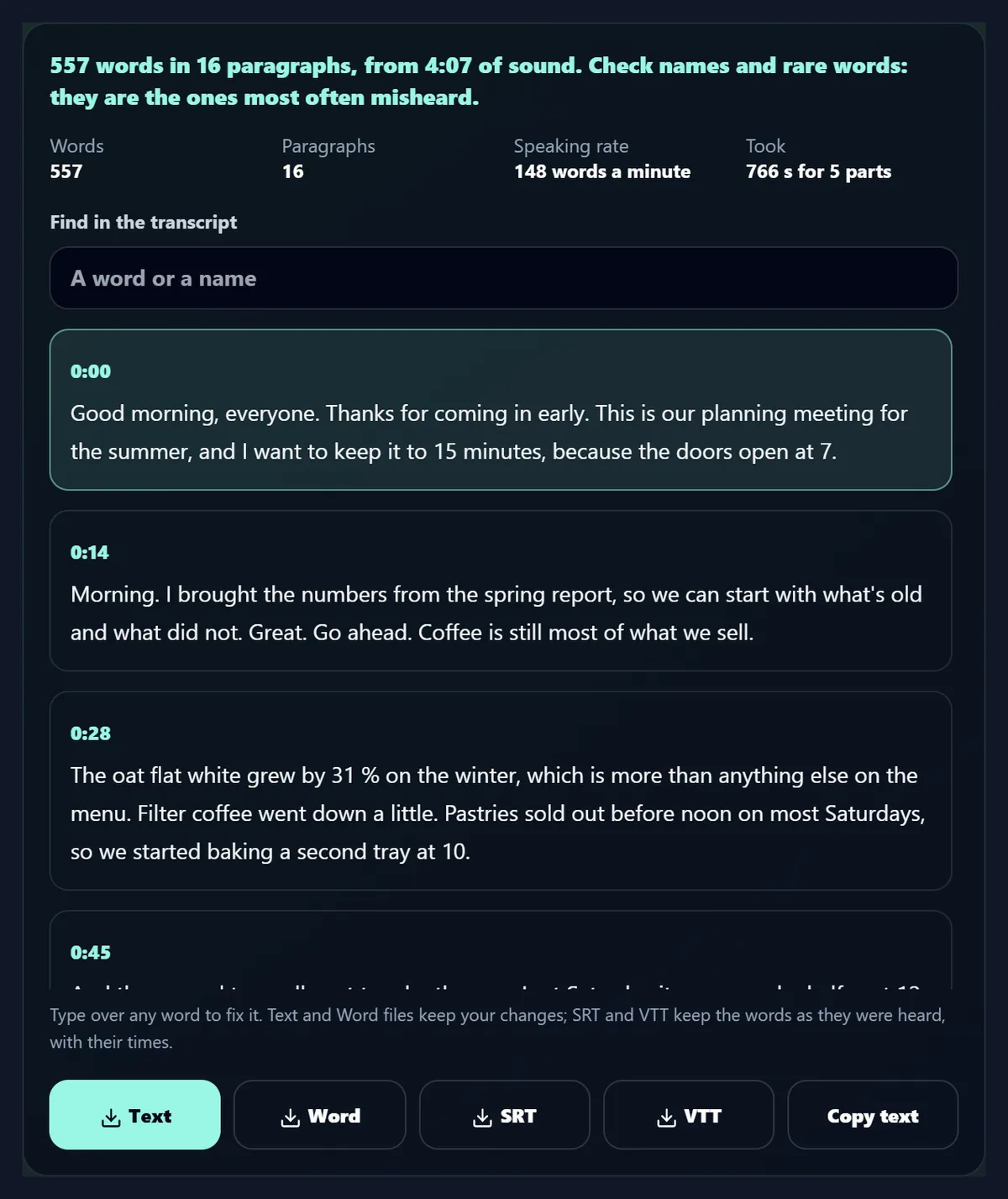
On a 4-minute team meeting with three voices, the transcript had 557 words in 16 paragraphs, and 551 of the 559 words spoken were right once numbers written in figures were counted (98.6%).
How to transcribe a recording
- Open the recording MP3, M4A, WAV, OGG, FLAC or a video.
- Choose the language Or let it be detected.
- Transcribe Every word, with paragraph times.
- Fix and save Text, Word, SRT or VTT.
Transcribe a meeting recording to text
A real recording of this tool: the sample meeting opened, transcribed in five parts (the wait shown faster), searched for a word and saved as text.
- The 4-minute sample meeting opens as a waveform, cut into five parts.
- Transcribe sends the parts to speech recognition one by one; the wait is shown 8 times faster.
- The transcript appears as timed paragraphs and the word cardamom is found.
- The transcript is saved as a text file.
How do I turn a recording into text?
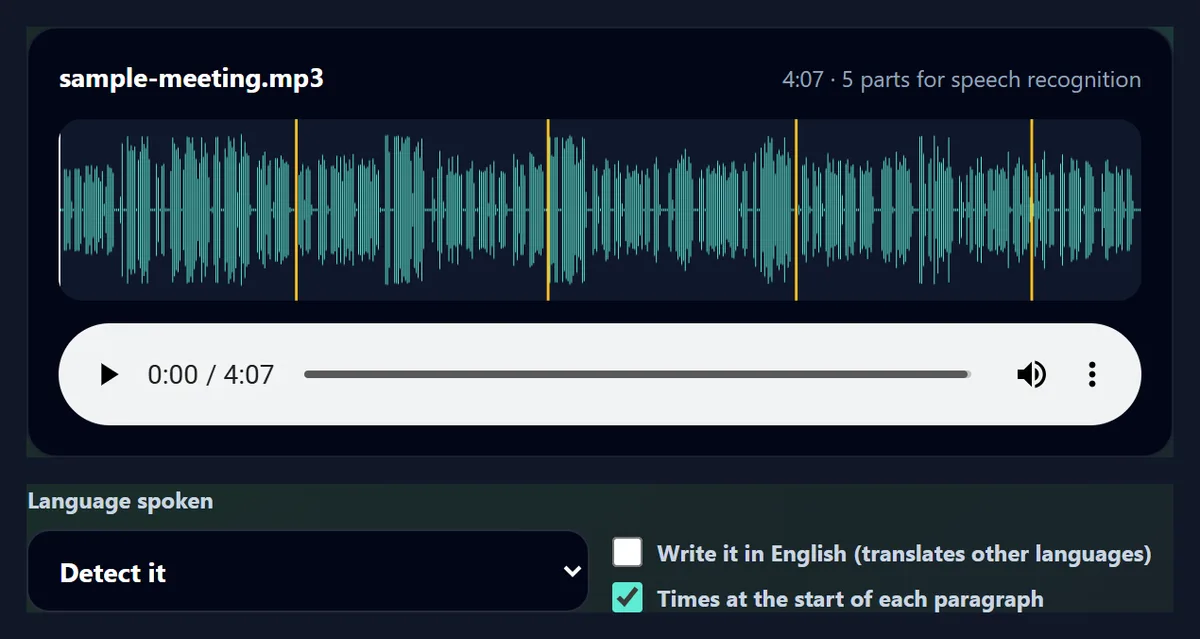
Drop the recording on the tool or choose it: a voice memo, an interview, a meeting, a lecture, a podcast, or a video whose words you need. Its sound appears as a waveform with a player under it. Choose the language spoken, or leave Detect it, and press Transcribe. Transcription is free with a HueFold account; sign in when asked and it starts.
The waveform shows where the recording will be cut into parts for speech recognition, as amber lines: the sample meeting, 4 minutes 7 seconds long, went in 5 parts.
How accurate is the transcript?
Both samples were read from known scripts, so every word could be checked. The café voiceover, one clear voice over music, came back with all 36 words right. The team meeting, three voices taking turns for four minutes, had 20 of its 559 words written differently from the script; 12 of those were numbers written in figures, such as 15 for fifteen and 31 % for thirty one percent, which is how Whisper writes them. Counting those as right, 8 words were wrong: 98.6% right.
The eight were five slips, all plausible from the sound: what sold became what's old, rota became rhoda, iced oat became I stowed, brewed became brood and at ten became attend.
| Sample | Length | Words heard right | Words wrong |
|---|---|---|---|
| Café voiceover, one voice over music | 0:14 | 100.0% | 0 of 36 |
| Team meeting, three voices, numbers in figures counted as right | 4:07 | 98.6% | 8 of 559 |
| Team meeting, exactly as written | 4:07 | 96.4% | 20 of 559 |
What does the transcript look like?
Paragraphs, each led by the time it starts. A new paragraph begins after a long pause, or at the end of a sentence followed by a shorter one, so a conversation usually breaks where the speaker changes. The result also gives the number of words, the paragraphs and the speaking rate: the meeting came back as 557 words in 16 paragraphs, spoken at 148 words a minute; the café voiceover at 168.
Click a paragraph's time to play the recording from there, and the paragraph being played is highlighted as it goes.
Does it say who is speaking?
No. Speech recognition writes what is said, not who says it, so the transcript has no names. Paragraphs often break where one person stops and another starts, because people pause there, but not always: in the meeting, a two-word reply, Great. Go ahead., ran on in the paragraph before it.
To label speakers, type their names at the start of their paragraphs: every paragraph is a text box.
Can I search the transcript?
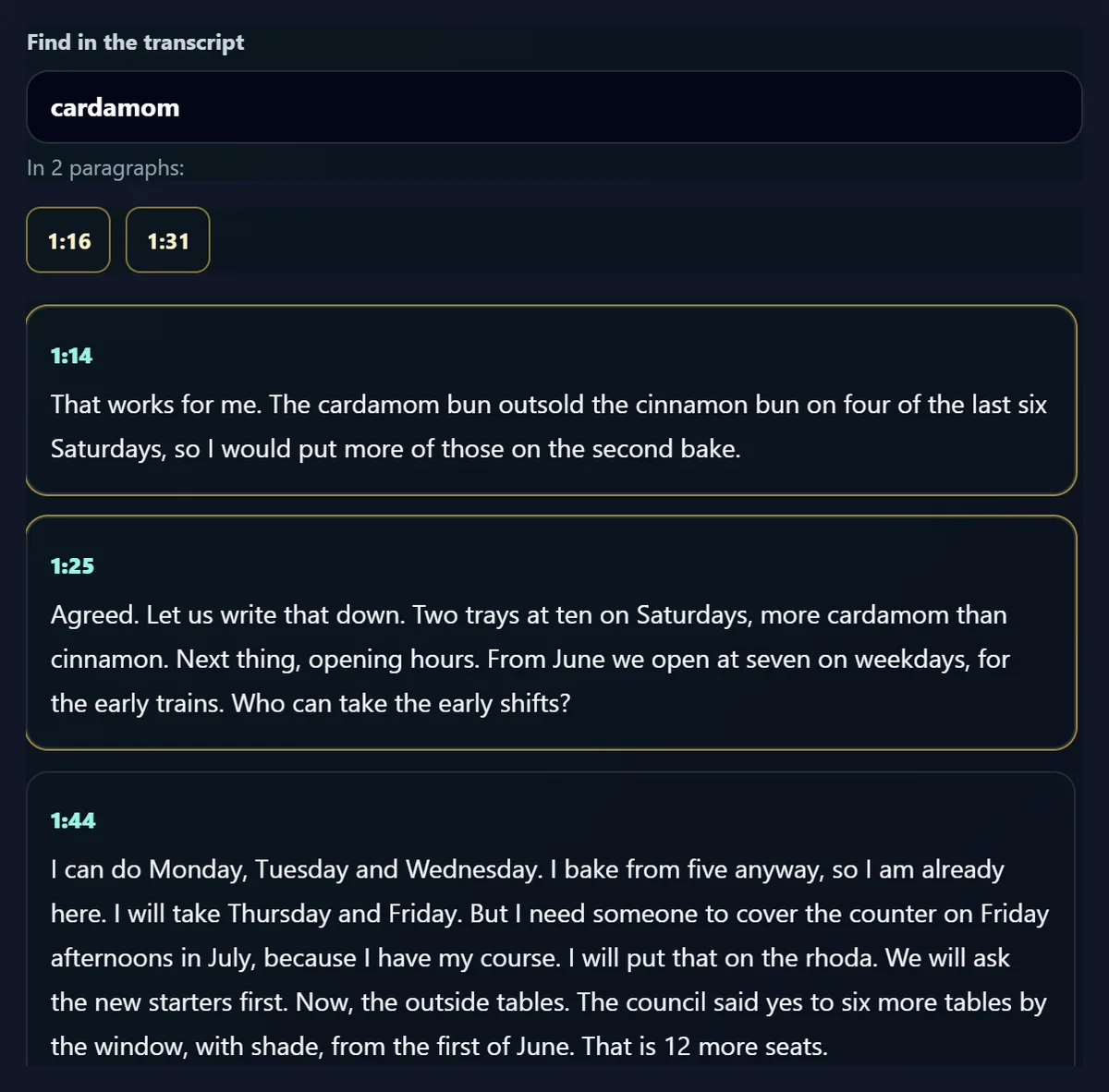
Yes. Type a word or a name into Find in the transcript: the paragraphs that say it are outlined, the first one comes into view, and a button for each gives the time it was said, which plays the recording from there. Accents and capitals do not matter, so cafe finds café.
In the meeting, cardamom was said in 2 paragraphs, at 1:16 and 1:31: the buttons give the moment the word itself was said, inside paragraphs that start at 1:14 and 1:25.
Which files can I save?
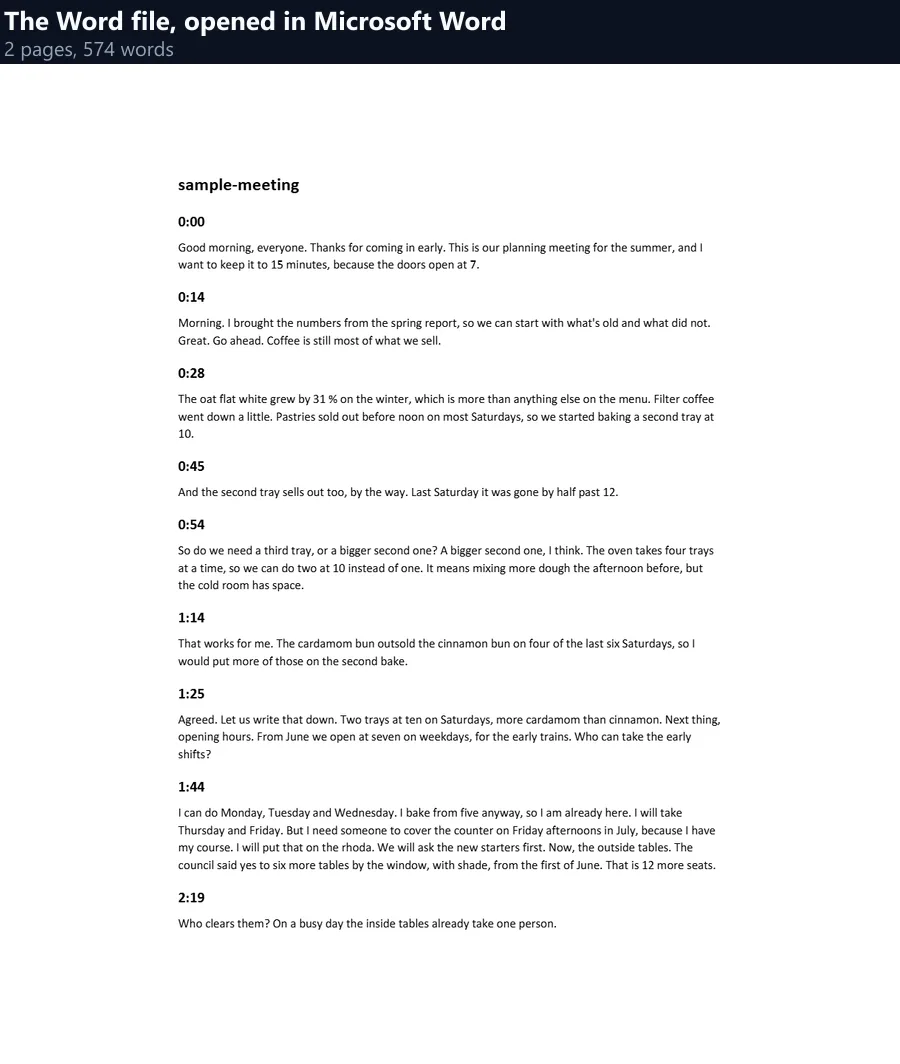
Text, with or without the times; Word, with the times as small headings; and SRT or VTT caption files, with the words timed for a video player. The meeting made a 2.9 KB text file, a 4.5 KB Word file that Word opened as 2 pages with its 16 times as headings, and SRT and VTT files of 78 captions each.
Text and Word keep any words you fixed; SRT and VTT keep the words as they were heard, with the times speech recognition gave them, so fix the caption files in a caption editor.
| File | What is in it | Size |
|---|---|---|
| Text (.txt) | 16 paragraphs, each led by its time | 2.9 KB |
| Word (.docx) | A title and 16 times as headings, 2 pages in Word | 4.5 KB |
| SRT | 78 timed captions | 5.4 KB |
| VTT | 78 timed captions | 5.2 KB |
How does it handle long recordings?
It cuts them into parts of about a minute and sends one at a time, then puts the words back on one clock. Each cut is made at the quietest moment in the 20 seconds before the minute is up, so a word is never cut in two: the meeting was cut at 0:54, 1:51, 2:48 and 3:42, and the sound at each cut was between −65.4 and −65.7 dB, the quiet of the room, against −20.9 dB for the recording as a whole.
Recordings up to 30 minutes can be transcribed in one go; for longer ones, cut them first.
How long does it take?
It depends on how busy HueFold's server is, since speech recognition runs there, one part after another. While these pages were being made, on a laptop that ran the server and other pages' tools at the same time, the 14-second voiceover took 11 s and the 4-minute meeting 766 s, about 3.1 times its length. While this page's video was being recorded, hearing the meeting took 495 s; the video shows that wait 8 times faster.
The progress bar moves part by part and the button says which part is being heard, so a long recording shows where it is.
Which languages can it transcribe?
Fourteen are listed: English, Spanish, French, German, Italian, Portuguese, Dutch, Hindi, Japanese, Korean, Chinese, Arabic, Russian and Turkish. Detect it, the default, lets the model work the language out from the first part; the language it hears there is then used for every later part, so the whole transcript is written the same way.
Write it in English translates speech in any of them into an English transcript. Japanese and Chinese words are joined without spaces, as those languages are written.
Which recordings can I open?
Whatever your browser can play. Current Chrome, Edge and Firefox play MP3, M4A and AAC, WAV, OGG and Opus and FLAC, and the sound of MP4 and WebM videos; Safari plays MP3, M4A, WAV and MP4 and MOV videos. The samples measured on this page were MP3s. If a file will not open, the tool says so: save it as MP3 or M4A first.
The sound is turned into a small mono recording at 16 kHz in your browser before anything is sent: 4 minutes 7 seconds became 7.6 MB, sent in five parts. A video's picture is never sent.
How do I get the most accurate transcript?
Give speech recognition clear sound: one person at a time, close to the microphone, with music and background noise low. Choose the language instead of Detect it when the recording starts with music, silence or a name. Check names, brands and rare words: they are the ones most often misheard, as rota was in the sample.
Numbers are usually written in figures (31 % rather than thirty one percent); change them in the text if your style needs words.
How do I fix the transcript?
Type over any word: every paragraph is a text box. Click a paragraph's time to hear the part again while you correct it. Your changes go into the text and Word files and into Copy text.
Times at the start of each paragraph can be turned off for a clean text, and turned back on at any time.
What does the speech recognition?
Whisper, the open speech recognition model released by OpenAI, run by HueFold on its own server (the base model). The recording goes nowhere else: not to OpenAI or any other company. Whisper gives every word with the moment it starts and ends, which is what lets the tool lay out timed paragraphs and caption files.
The same speech recognition writes the captions on the Auto Caption and AI Caption Generator pages.
How were the samples made?
The meeting was written for these pages and read by Windows' three built-in voices, Microsoft David, Hazel and Zira, taking turns, with short pauses between them and quiet room noise underneath; the script was kept, so the transcript could be checked word by word. The café voiceover is an ElevenLabs voice reading a known script over music, made for the AI voice pages.
Synthetic voices are clear; real recordings, with people talking over each other and noise in the room, will have more to fix.
What is a transcript good for?
Minutes of a meeting, quotes from an interview, notes from a lecture, show notes for a podcast, the text of a voice memo, subtitles for a video, or a searchable record of a call. A transcript is quicker to skim than a recording is to listen to, and a search finds the moment you need.
With the SRT file, the same words become captions on a video; with the text, they can be translated on the Translate page.
Is my recording kept?
No. Only the sound is sent, as a small 16 kHz recording, a minute or so at a time, to HueFold's own server, and it is not kept after the words come back. The recording itself, and any video picture, stay on your device. The transcript is made in your browser and goes nowhere unless you save or copy it.
Transcription uses no AI credits; it needs a free HueFold account.
Frequently asked questions
Is it free to transcribe audio?
Yes, with a free HueFold account; no credits are used.
How accurate is it?
On the sample meeting, 98.6% of words were right, counting numbers in figures; the café voiceover was 100%.
How long a recording can I transcribe?
Up to 30 minutes, sent in parts of about a minute.
Does it identify speakers?
No: it writes what is said; paragraphs usually break where speakers change.
Which files can I save?
Text, Word, SRT and VTT.
Which languages?
Fourteen are listed, or the language is detected; any can be written in English.
Can I transcribe a video?
Yes: its sound is transcribed, and its picture is not sent.
Is my recording uploaded?
Only its sound, a minute at a time, to HueFold's own server, and it is not kept.
How long does it take?
Roughly as long as the recording, several times longer when the server is busy.
Related tools
- Auto Caption — Captions burnt into a video.
- AI Caption Generator — Timed captions for any video.
- Voice Recorder — Record a voice, then transcribe it.
- Summarizer — The key sentences of a long transcript.
- Translate — The transcript in another language.
- Video Translator — A video's speech as captions in another language.