Video Enhancer
Fix a dark, dull or blue video in your browser: Auto reads the whole clip and corrects exposure, white balance and contrast, with clarity and sharpening on top. No upload.
Updated
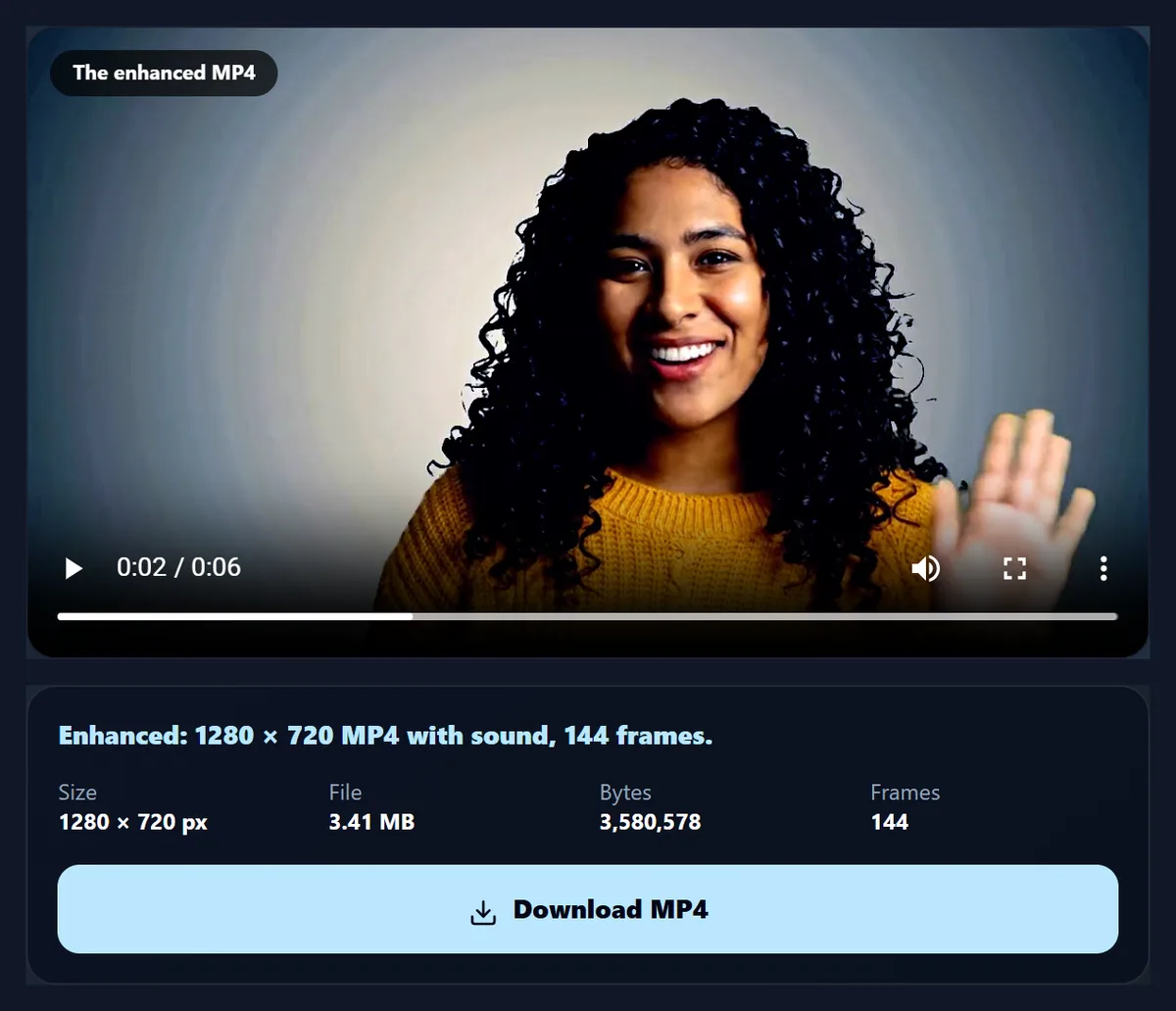
How do you enhance a video?
Open the video and Auto corrects it at once, from frames across the whole clip. Compare with the original, adjust the amount, add clarity or sharpening, and press Enhance the video to save an MP4 with the sound.
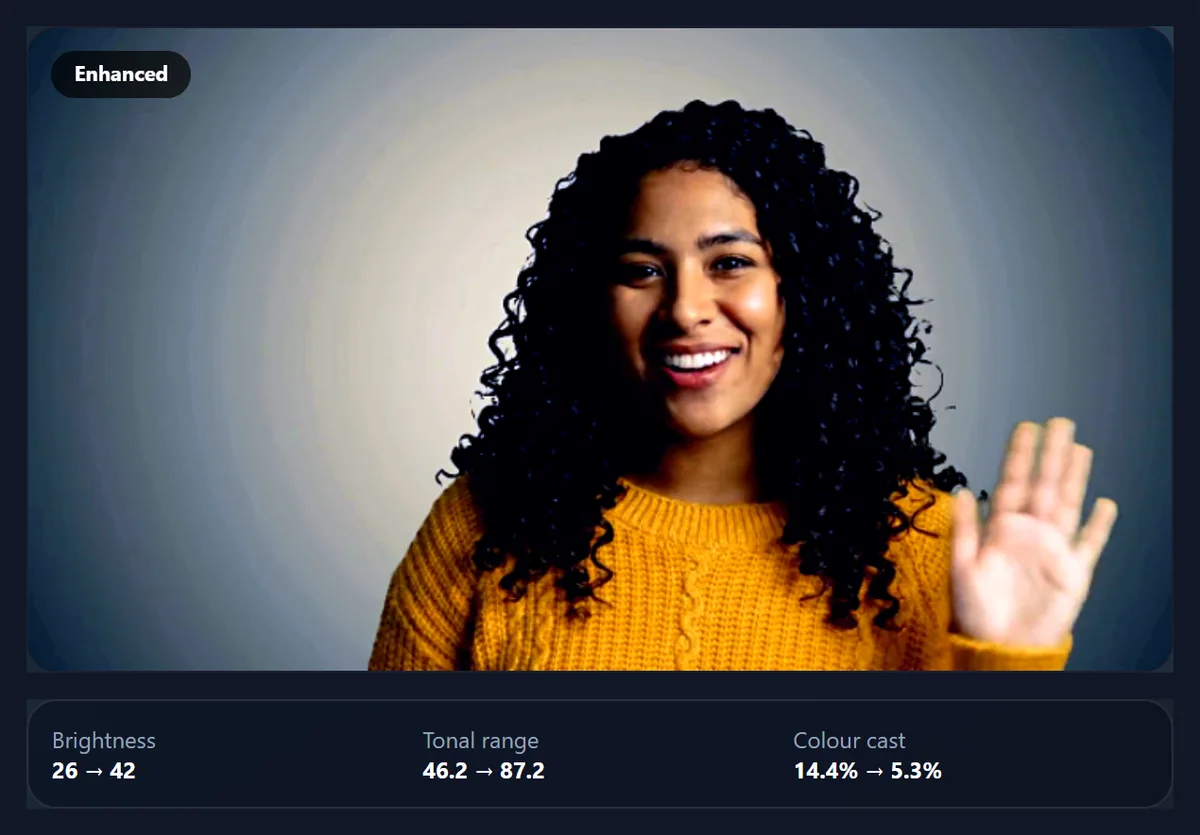
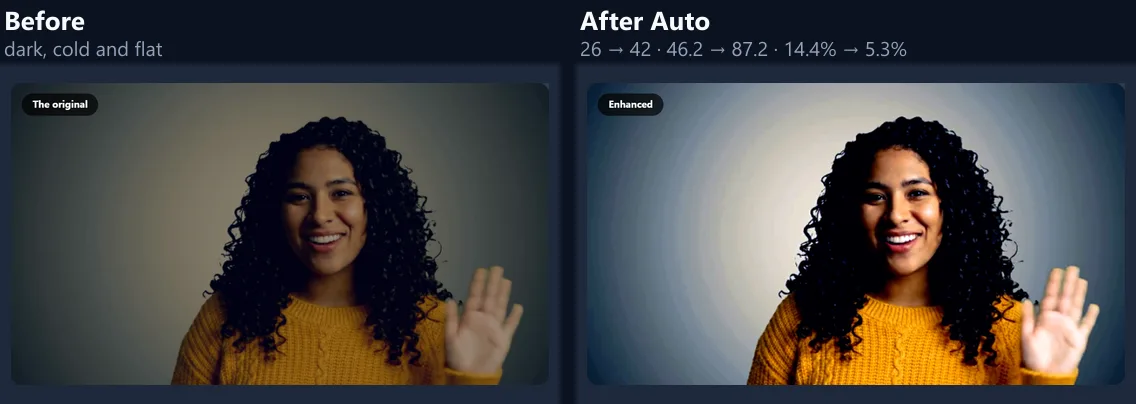
On the dull sample, Auto raised the median brightness from 26 to 42 and cut the colour cast from 14.4% to 5.3%. Everything happens in your browser.
How to enhance a video
- Open a video Auto corrects it straight away.
- Compare Press Original; check the readout.
- Adjust Amount, another correction, clarity, sharpen.
- Enhance and download An MP4 with the sound.
Enhance a dark, cold video
A real recording of this tool: the dull sample opened, compared with the original, three corrections tried, and the enhanced MP4 made.
- The dull sample is opened and Auto corrects it.
- The original is shown for comparison.
- Warm, Punch and Auto are tried.
- The enhanced MP4 is made.
What does the enhancer change, and by how much?
Light, colour and contrast, and it shows you the numbers. On the dull sample, a phone clip a stop and a half too dark, cold and flat, Auto raised the median brightness from 26 to 42 out of 100, widened the tonal range from 46.2 to 87.2, and cut the colour cast from 14.4% to 5.3%. The fixed corrections each do one job: Brighten lifts the exposure, Warm and Cool move the white balance, Punch and Vivid add contrast and colour, Soft calms both.
The readout under the preview measures the same frame before and after whatever you choose, so you can see whether a change helps rather than guess. A median near 45 to 55 and a small cast usually look natural.
| Correction | Brightness after | Tonal range after | Colour cast after |
|---|---|---|---|
| Auto | 42 | 87.2 | 5.3% |
| Brighten | 32.8 | 60.3 | 15.1% |
| Vivid | 23.5 | 46.4 | 19.9% |
| Punch | 22.6 | 49.8 | 21.1% |
| Warm | 26.1 | 46.5 | 18.1% |
| Cool | 25.9 | 46.2 | 11.9% |
| Soft | 32.4 | 41.2 | 9.4% |
How do you enhance a video?
Open the video and Auto is applied straight away: the tool reads eight frames spread across the whole video, works out one correction for exposure, white balance and contrast, and shows the result in the preview as the video plays. Press Original to compare. Change the Amount to apply more or less of the correction, add Clarity or Sharpen if it looks soft, then press Enhance the video.
The dull sample became a 1280 × 720 MP4 with all 144 frames and its sound.
How does Auto decide what to fix?
It is the HueFold editor's own Auto, run on frames from across your video instead of one photo. It measures the median brightness, the darkest and brightest tones and the average colour, then sets exposure to bring the middle tones to a natural level (never more than a stop and a half either way), balances the colour so greys come out grey, and stretches the contrast only if the picture is flat. On the sample it said: Exposure +0.8 EV · Temp −60 · Tint +33 · Contrast +30
Reading the whole video, rather than the frame on screen, means one correction for every frame, so nothing pulses or flickers from shot to shot as the light changes a little. Because Auto aims for neutral middle tones, it also cools a scene that was meant to be warm: the sample's beige wall came out a cooler grey. If the warmth belongs to the scene, lower the Amount or use Brighten instead.
When should I use a correction other than Auto?
When you know what you want. Brighten for a clip that is simply a little dark; Warm for a cold, bluish clip filmed in shade or under LEDs; Cool for an orange clip filmed under old indoor bulbs; Punch for a foggy or flat clip; Vivid for colours that look washed out; Soft for harsh, contrasty sunlight.
Each is applied at the Amount you choose, so a little of a strong correction is often better than all of it.
What do Clarity and Sharpen do?
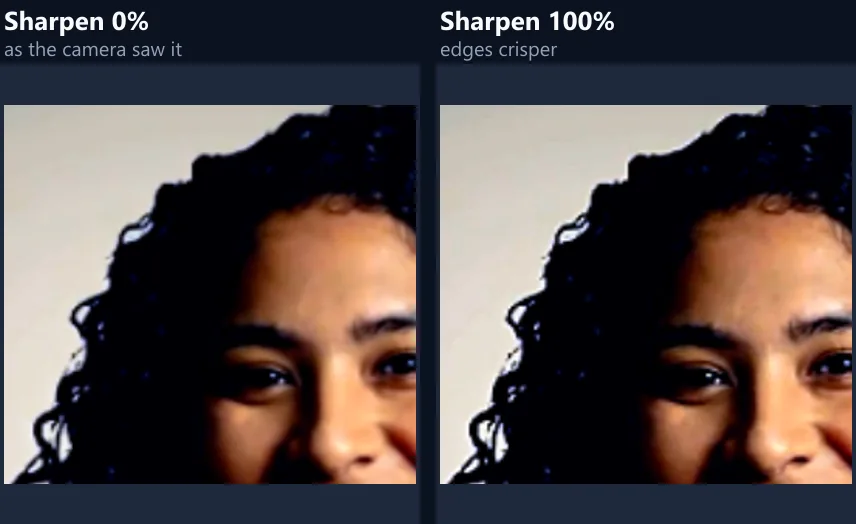
Sharpen adds contrast to the finest edges, a pixel or so wide, which makes a slightly soft clip look crisper. Clarity adds contrast to larger areas, about one percent of the frame wide, which gives texture and depth to faces, fabric and landscapes. Both are unsharp masks, the same as on the photo enhancer, done on the graphics card for every frame.
Too much of either looks harsh and shows noise; 20% to 40% is usually enough. The figure shows the sample's hair at 0% and 100% sharpening.
What can the enhancer not do?
It cannot add detail that was never recorded: it does not upscale, remove noise or fix blur from a shaky or out-of-focus shot. Nothing is invented; only exposure, white balance, contrast, colour and edge contrast change. A very dark clip brightened a lot will show the noise that was hidden in the shadows.
For a larger picture, use the video upscaler; for a look rather than a fix, use the video filters.
What do the readout numbers mean?
Brightness is the median brightness of the frame, from 0 (black) to 100 (white). Tonal range is how far apart the darkest and brightest tones are, ignoring the extreme 2% at each end: a flat, foggy clip has a small range. Colour cast is how far the middle tones lean towards red or blue compared with green; a few percent is normal, more than about 5% usually looks tinted.
They are measured on the frame in the middle of the video, the same way as on the photo enhancer.
Will enhancing lower the quality?
The picture is re-encoded as H.264 at its own size (or smaller if you choose) and a generous bitrate, at least 4 megabits a second, so the correction is not undone by compression. The enhanced sample was 3.41 MB.
Grading is done in the graphics card at full precision for every frame, then written once.
How long does it take?
About twice the video's length: it plays through at half speed (a quarter for 4K) while every frame is graded and encoded, so that none is missed. The page says how long before you start.
Keep the tab in front while it works; browsers slow hidden tabs.
Why do phone videos look dull or dark?
Phones choose the exposure and white balance as you film, from what is in the frame at that moment. Indoors, under mixed or dim light, or against a bright window, they often guess wrong: faces come out dark, colours lean blue or orange, and contrast goes flat. Compression in messaging apps then softens what is left.
Those are exactly the things the enhancer measures and corrects: exposure, white balance and contrast, with sharpening for softness.
How much correction should I use?
Start with Auto at 100% and look at faces: if skin looks natural and nothing glows, keep it. If it feels too strong, lower the Amount to 50% to 70%, which keeps the direction of the correction but less of it. For a clip that needs one specific fix, a fixed correction such as Brighten or Warm at 100% may look more natural than Auto.
Use the Original button often: eyes adjust quickly to a change, and comparing is the best way to keep it honest.
Can I make several clips match?
Use the same fixed correction at the same amount on each clip: a fixed correction is a fixed set of numbers, so every clip moves the same way. Auto reads each clip separately and so makes each one look its best, which is not always the same.
Once each clip is corrected, join them with the merge videos tool, or give them all the same look with the video filters.
Is this colour grading?
It is colour correction: making the picture look right, with natural exposure, neutral colours and good contrast. Colour grading is the creative step after it, giving a video a look or a mood. The video filters page has 36 grading looks; correct here first, then grade there.
Both use the same colour maths as the HueFold editor, so a clip corrected here and graded in the editor looks the same.
Why does it say graphics card or processor?
Every frame is graded in the browser's WebGL 2, which runs on the graphics card and keeps up with video easily. If your browser has no WebGL 2, the tool grades on the processor instead: the result looks the same, without clarity, and making the MP4 takes longer.
All current versions of Chrome, Edge, Firefox and Safari have WebGL 2 on most computers and phones.
Should I enhance before or after other edits?
Enhance early, right after cutting the video to length and before adding text, filters or music. Correcting light and colour first means every later step starts from a good picture; text added afterwards keeps its own colours instead of being shifted by the correction.
If you will also apply a look from the video filters, enhance first and add the look second.
Can it fix a video filmed at night?
It can brighten it and balance the colour of street lights, which often come out orange, but it cannot remove the grain that a phone adds in the dark, and brightening makes that grain easier to see. Use Brighten or Auto at a lower Amount, and little or no Sharpen, which would sharpen the grain as well.
Night videos often look best a little dark, as night is: aim for faces you can see rather than daylight.
Can I enhance a video on my phone?
Yes, in a current browser on Android or an iPhone. The grading runs on the phone's graphics chip. Save the MP4 to your downloads when it is done.
For long 4K clips, choose Up to 1080p to keep the phone's memory free.
Is my video uploaded?
No. The video is read, graded and encoded inside your browser tab. Nothing is sent to HueFold or anyone else, and there is no watermark or sign-up.
There is no AI model involved either: the corrections are measured and applied with the editor's colour maths.
Why does the preview look the same as the original?
Your video may already be well exposed and balanced: Auto then changes little, and the readout shows small differences. Try a fixed correction, or raise the Amount. If the page says it is grading on the processor, your browser has no WebGL 2; it works, more slowly, and without clarity.
If the page says it cannot write MP4 at this size, choose Up to 1080p.
Frequently asked questions
How do I enhance a video?
Open it, check Auto’s correction, and press Enhance the video.
Can it brighten a dark video?
Yes. Auto or Brighten lifts the exposure.
Can it fix a blue or orange video?
Yes. Auto balances the colour; Warm and Cool do it by hand.
Does it sharpen?
Yes: Sharpen for fine edges, Clarity for texture.
Does it upscale or remove noise?
No. It corrects light and colour and adds edge contrast.
Does the video flicker?
No. One correction is used for every frame.
Is my video uploaded?
No. Everything happens in your browser.
Is it AI?
No. It measures the video and applies the editor’s colour maths.
Related tools
- Video Filters — Give a video a look.
- Video Upscaler — A larger picture.
- AI Photo Enhancer — The same for photos.
- Brighten Image — Brighten a photo.
- Crop Videos — Crop the frame.
- Video Resizer — Resize for Reels.